



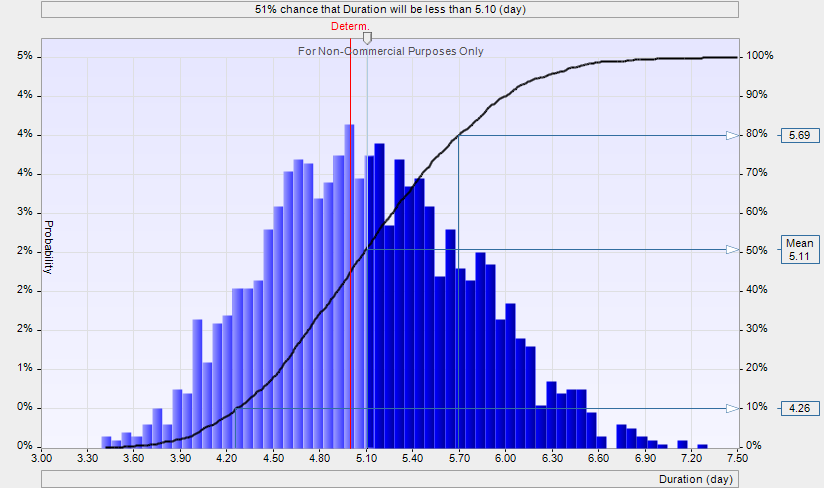
Advanced Project Risk Management and Schedule Risk Analysis Software
RiskyProject Professional is comprehensive project risk analysis and management software. RiskyProject Professional allows users to perform Monte Carlo simulations of project cost and schedule using discrete risk events and uncertainties defined by three point’s estimates. Cost and schedule risk analysis allows users to create realistic “risk adjusted” cost and schedule estimates to complete their projects. RiskyProject Professional also provides a comprehensive project risk management capability that is compatible with all major project risk methodologies and processes, such as those supported by PMI, Prince II, and ISO 31000.
RiskyProject Professional is a sophisticated, yet easy to use tool that can be used by project managers, controllers, schedulers, and other team members regardless of whether they are a risk expert or a basic user. In RiskyProject Professional, users can create their own schedules with resources and costs, or import their projects from Microsoft Project, Oracle Primavera, or other project management tools. With the project estimates in RiskyProject, users can quickly define risks and uncertainties for cost, schedule or other impacts, perform Monte Carlo simulations, and determine their project risk profile.
RiskyProject Professional has an integrated fully feature risk register that allows you to perform project risk management. The risk register can be either qualitative or quantitative and can include non-schedule risks, such as reputation, quality, and performance. Risks can be linked to project activities to measure how they will impact cost and schedule as part of the Monte Carlo Simulations.
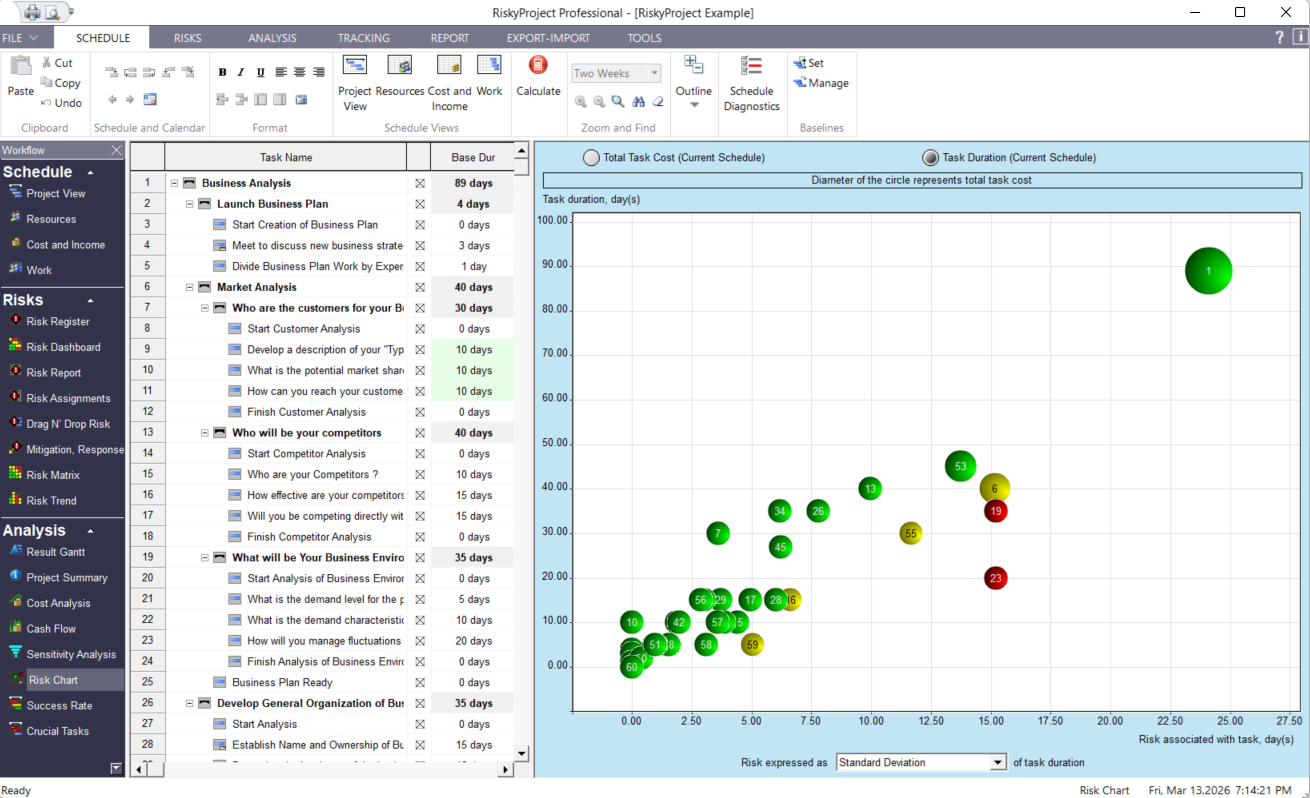
RiskyProject Professional allows project planners and managers to perform integrated schedule and cost risk analysis. With resource loaded schedules, users can link risks from their risk register to project activities and resources, and define uncertainties related to schedule and cost of each task. RiskyProject Professional will provide results in the form of cumulative project cost curves and probabilistic cash flow plots, and joint confidence scatter plots for cost and schedule. In addition, RiskyProject Professional calculates the amount of work for each time frame for each resource, which provides probabilistic work and resource allocation reports. Advanced project risk analysis features also include probabilistic and conditional branching, multiple statistical distributions, probabilistic calendars, risk bubble chart (presents relative task cost or schedule risk of each task vs project cost or schedule), crucial task chart, success rate chart, and other customizable reports and views.
RiskyProject Professional provides comprehensive sensitivity analysis on project risks, cost, duration, finish time etc. The results of the sensitivity analysis can be viewed as Tornado charts and are available in a variety of reports. In addition, using the Monte Carlo simulations and sensitivity analysis, RiskyProject Professional will automatically rank risks in the risk register. During project execution, RiskyProject Professional allows project managers to monitor and control their risks, and perform updated forecasts using actuals. This provides update risk adjusted estimates to complete and supports the earned value management reporting process.
Project risk management features:
- risk register
- risk ranking
- customizable risk matrix
- customizable risk dashboard
- customizable risk input form
- risk response and mitigation plans
- risk mitigation analysis
Monte Carlo schedule risk analysis features:
- works as standalone and Microsoft Project Add-In
- integrated with Primavera and other project management software
- multiple statistical distributions
- sensitivity analysis
- crucial tasks and critical risks
Comprehensive risk reporting
Project controls with risks and uncertainties
Seamless Integration with Microsoft® Project
RiskyProject Professional is seamlessly integrated with Microsoft® Project:
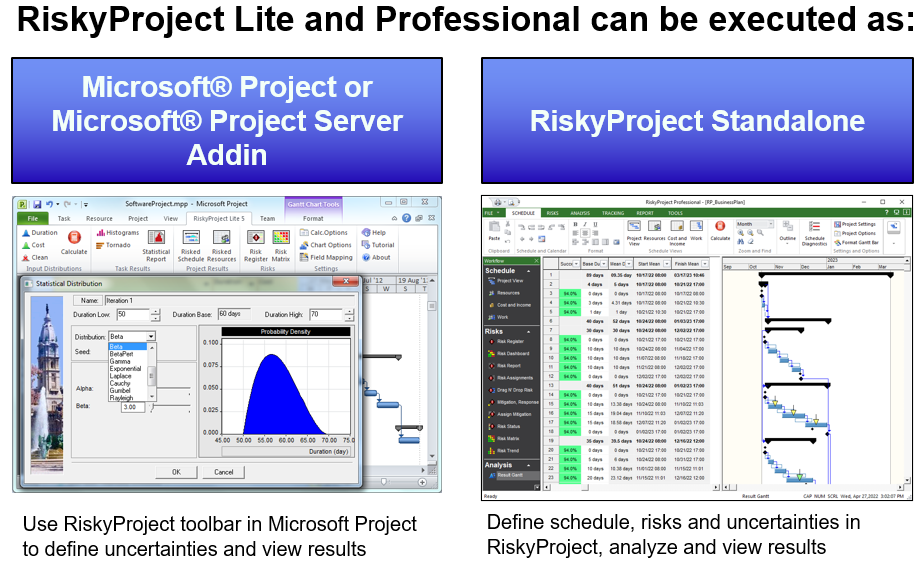
Click here for more information about RiskyProject for Microsoft® Project.
Project Scheduling
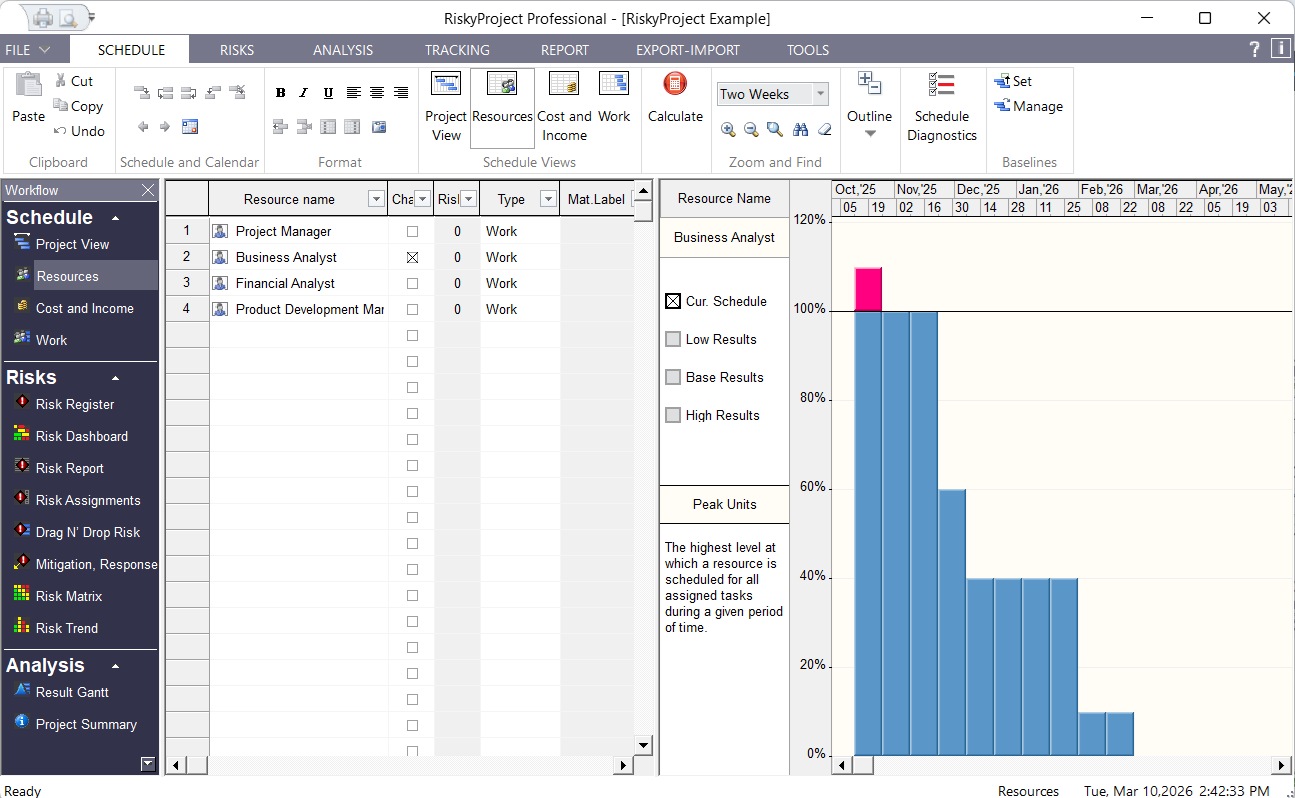
RiskyProject is built around its own scheduling system. You can define task parameters, relationships between them, constraints, resources, and cost without using Microsoft® Project, Oracle Primavera, or any other scheduling software.
However, if you are already a user of Project, Oracle Primavera, or other project management software, you can seamlessly open project, created by these applications and augment existing data by assigning uncertainties to your tasks and projects.
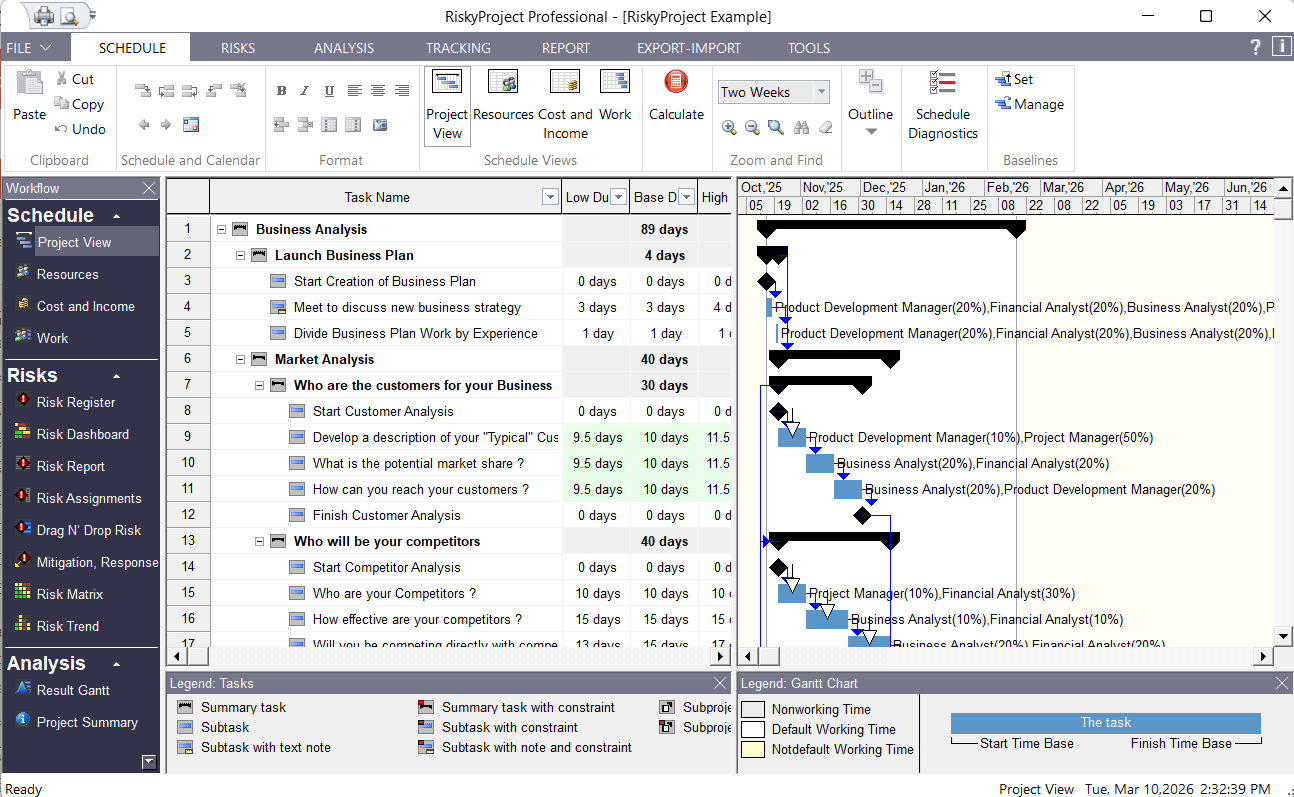
Probabilistic Resource Management
The Resource chart shows the time allocation for a selected resource. You can select four different types of resource charts: peak units, work, overallocation, and percent allocation. You can analyze resource allocation for low, base, and high results of Monte Carlo schedule risk analysis.
Qualitative Risk Analysis
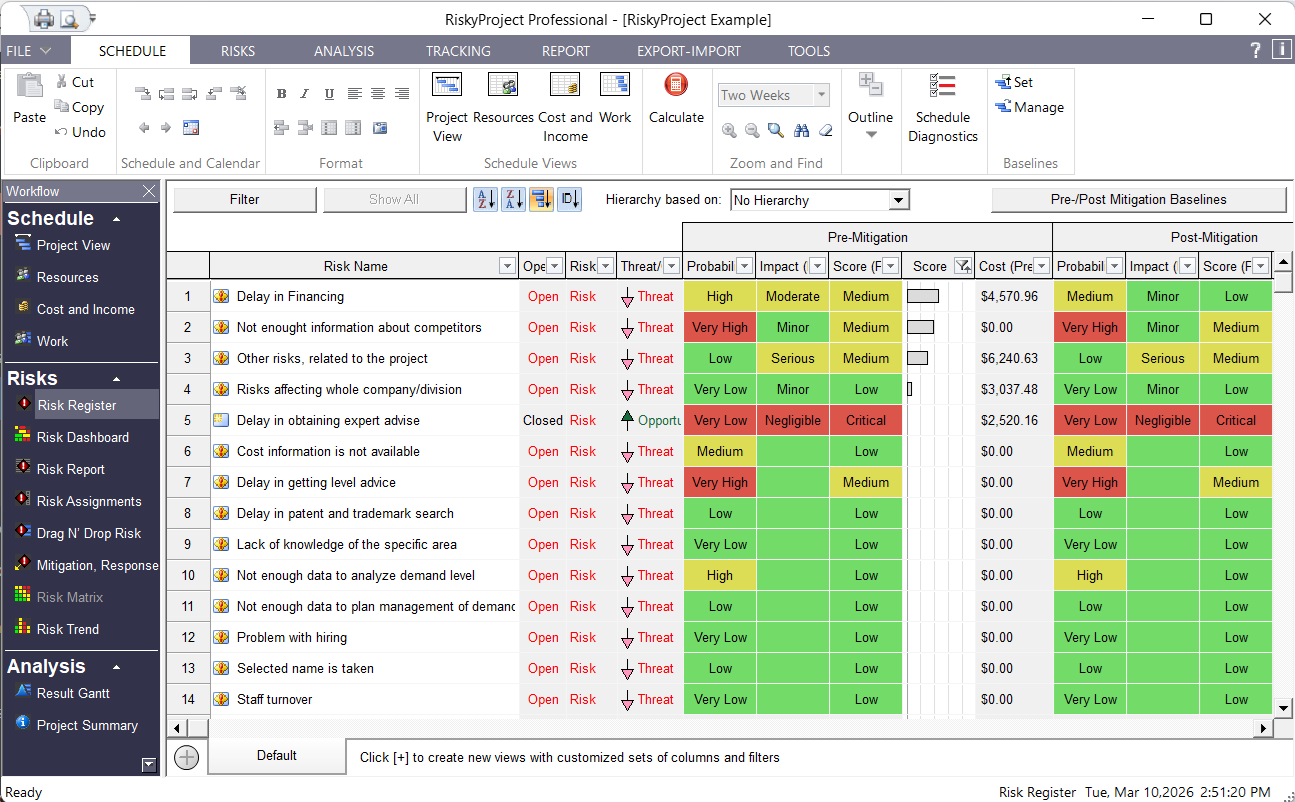
Risk Register
A risk register is a set of all risks and issues in the project. Issues are risks that have occurred and therefore are having an actual affect on your project. You can easily convert risks to issues. You can open and close risks. Risks in the risk register may have different properties (owner, recorder, contact, date recorded, date converted to issue, location, etc.). You may customize any properties for all projects.
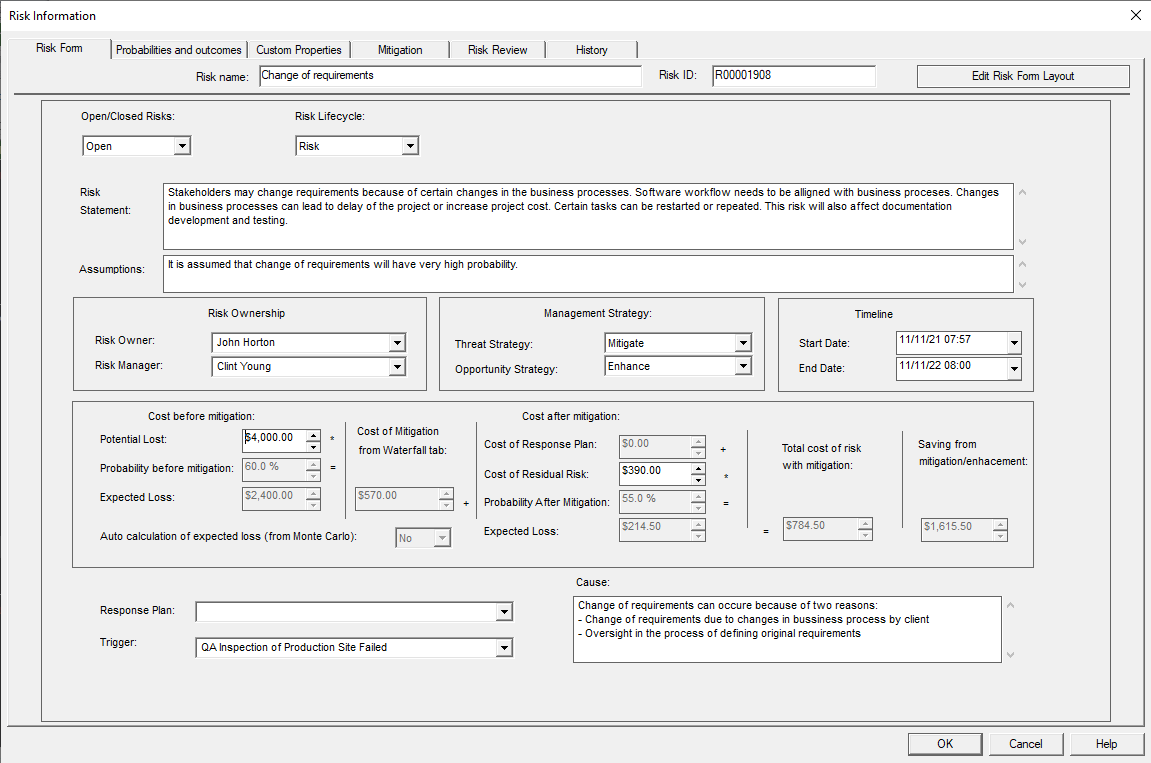
Risk Form
Risk Form is a fully customizable form to enter risk properties, as well risk probabilities and impacts. You can create any risk properties or select them from the list of predefined properties. Then you can drop them on the form. The form can be annotated with lines and text. Once you design a form it can be used for all future projects.
Risk Matrix and Risk Trend
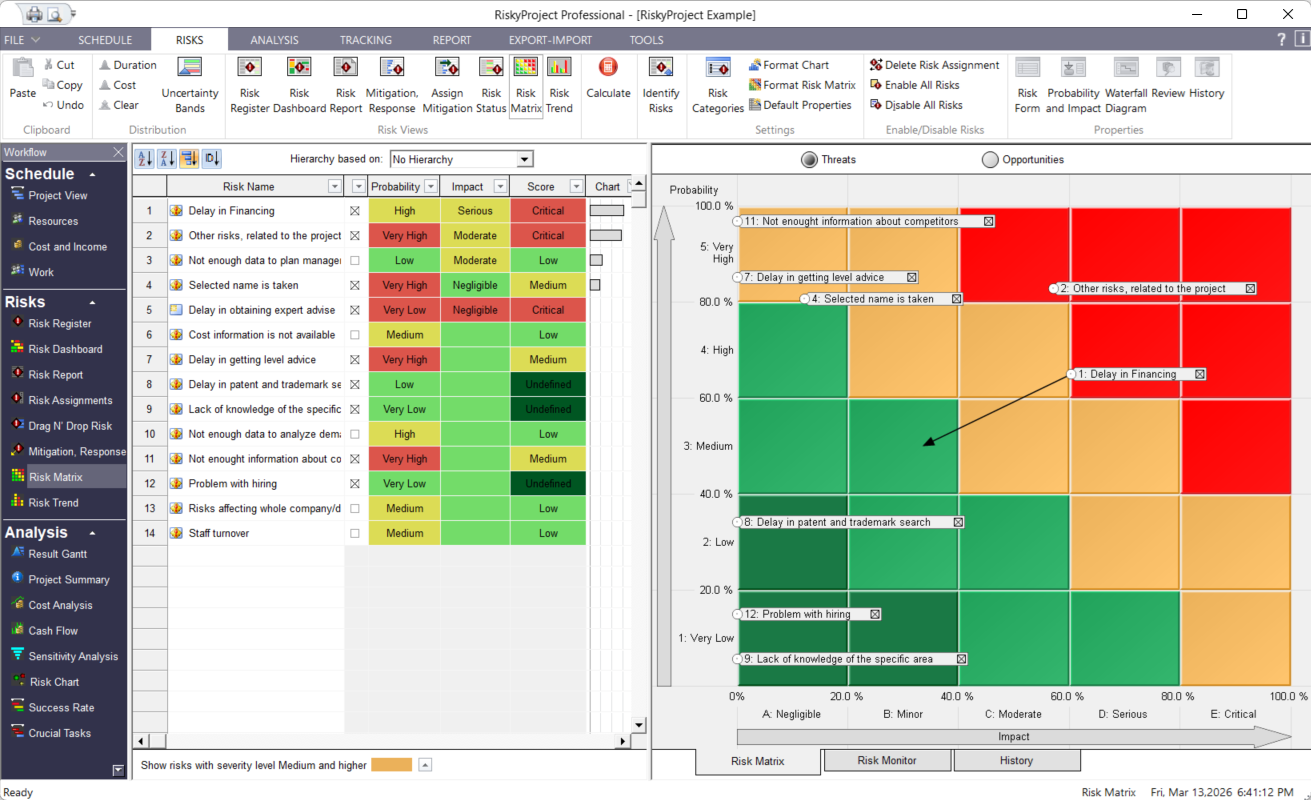
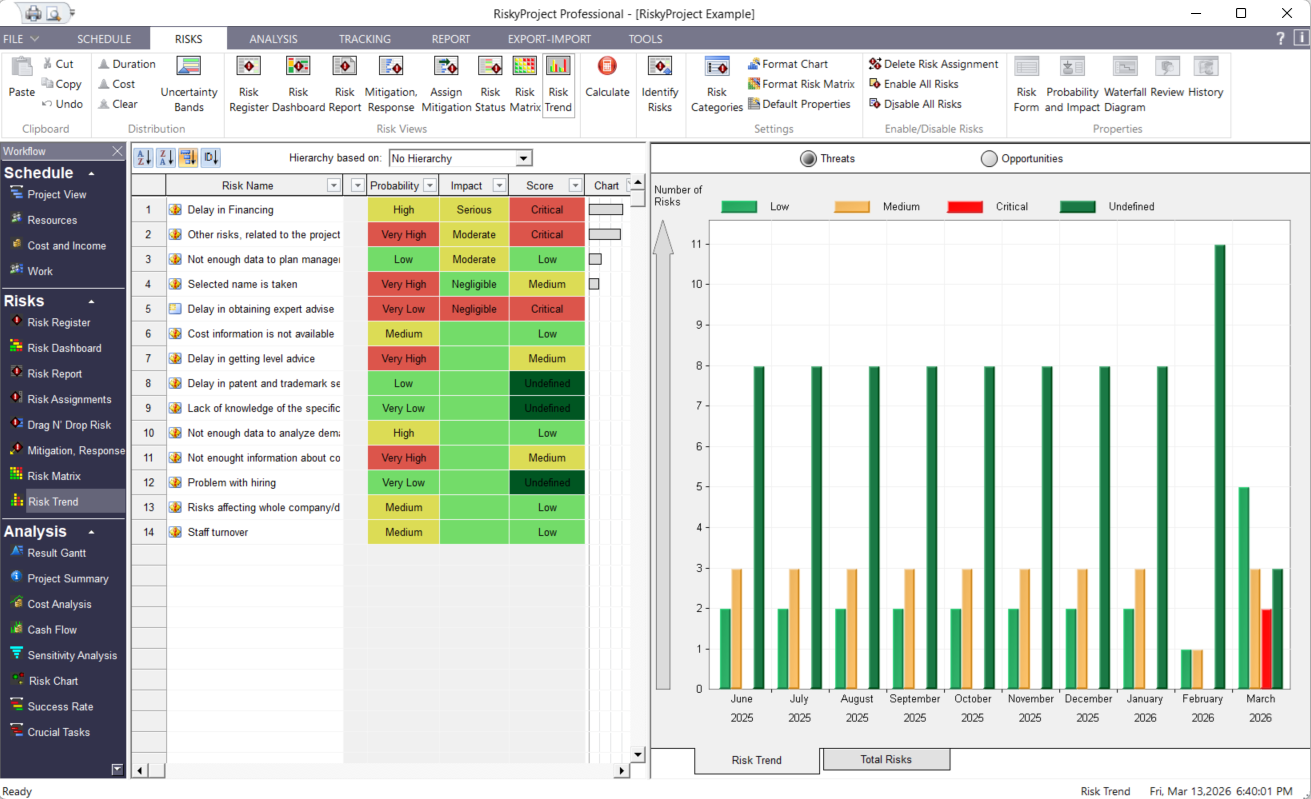
Risk Matrix and Risk Trend views allow you to determine the severity of a risk and analyze how risks are changing over time:
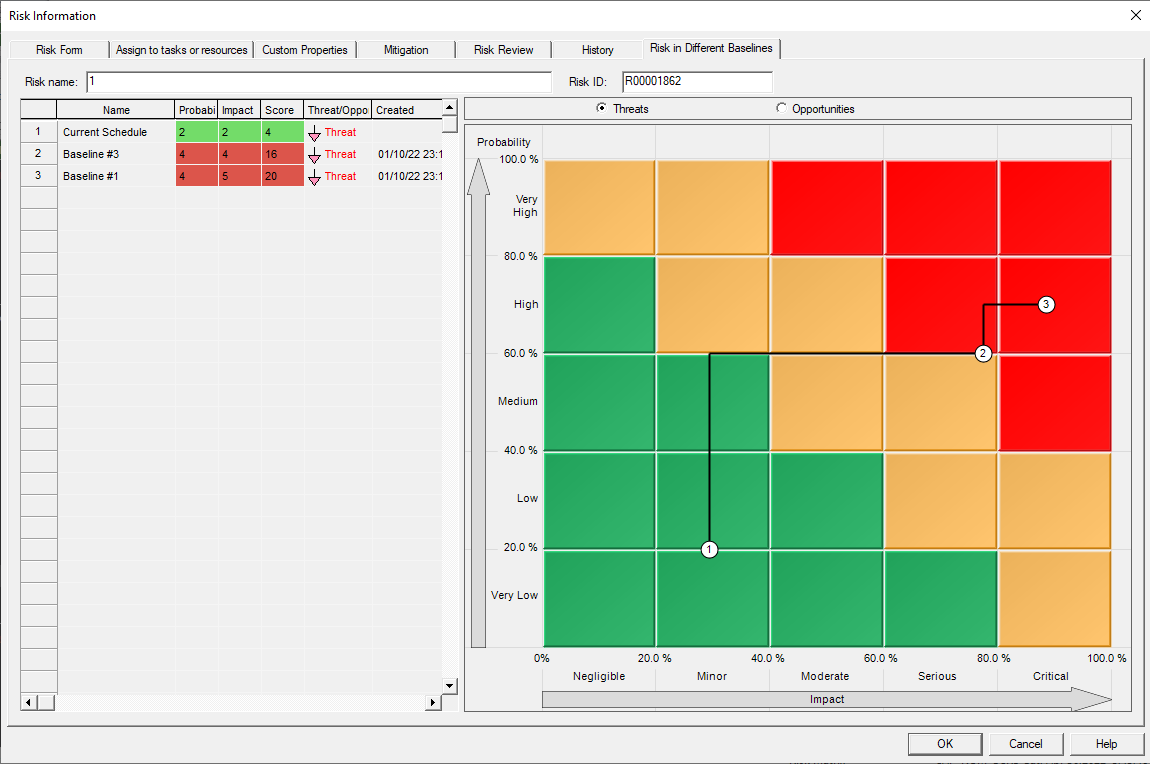
• The Risk Matrix is a tool that allows you to determine the severity of a risk. The Risk Matrix view shows this using the risk probability (y-axis) vs. calculated risk impact (x-axis) of the project risks. The Risk Matrix view is divided into two sections: a table with a list of risks with their actual calculated values for probability, impact, and score. When you select these risks, they are shown visually on a matrix, which provides a visual comparison of this data put as well as putting each risk into the context of your organization’s risk tolerance. Changes in probability and impact due to mitigation plans added to a risk’s mitigation waterfall chart will automatically be displayed in the Risk Matrix.
• The Risk History shows how the probability and impact of an individual risk has changed over time.
• The Risk Monitor shows the number of risks per cell in the risk matrix.
• The Risk Trend shows how project risk change over time. The Risk Trend can be presented as bar chart or in table format (Total Risks).
Managing Mitigation and Response Plans
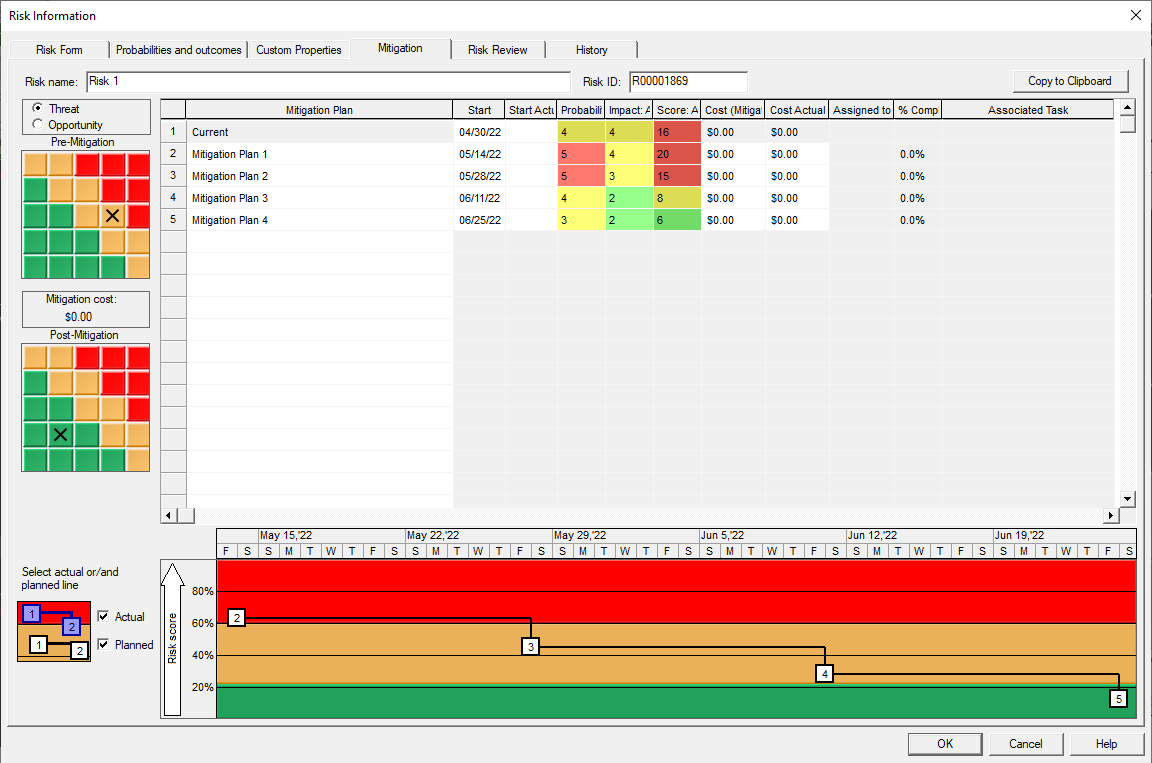
In RiskyProject you can model risk mitigation or response efforts. Response plans are activities that are executed when a risk occurs and are used for quantitative risk analysis. Mitigation plans are actions that are performed to minimize risk probability and/or impact and can be visualized using the Risk Mitigation Waterfall diagram.
All mitigation and response plans can be saved in a separate Mitigation and Response Plan Registry. The plans can now be linked to tasks or a group of tasks within a project schedule. This linking will read the schedule data into the mitigation plan to calculate costs and planned finish and actuals.
Quantitative Risk Analysis
Assigning Risks to Tasks and Resources
Risks and issue can be assigned to different tasks and resources or be global. For example, you could assign the risk “Not enough data to analyze demand level” to all tasks that this risk could affect. Each risk assignment will have different probabilities and outcomes. For example, “Budgetary problems” assigned to task “Project elaboration” will have chance of occurrence 15% and outcome “Restart task”.
After calculation, the risk register will present calculated risk impact, probability and score before and after mitigation.
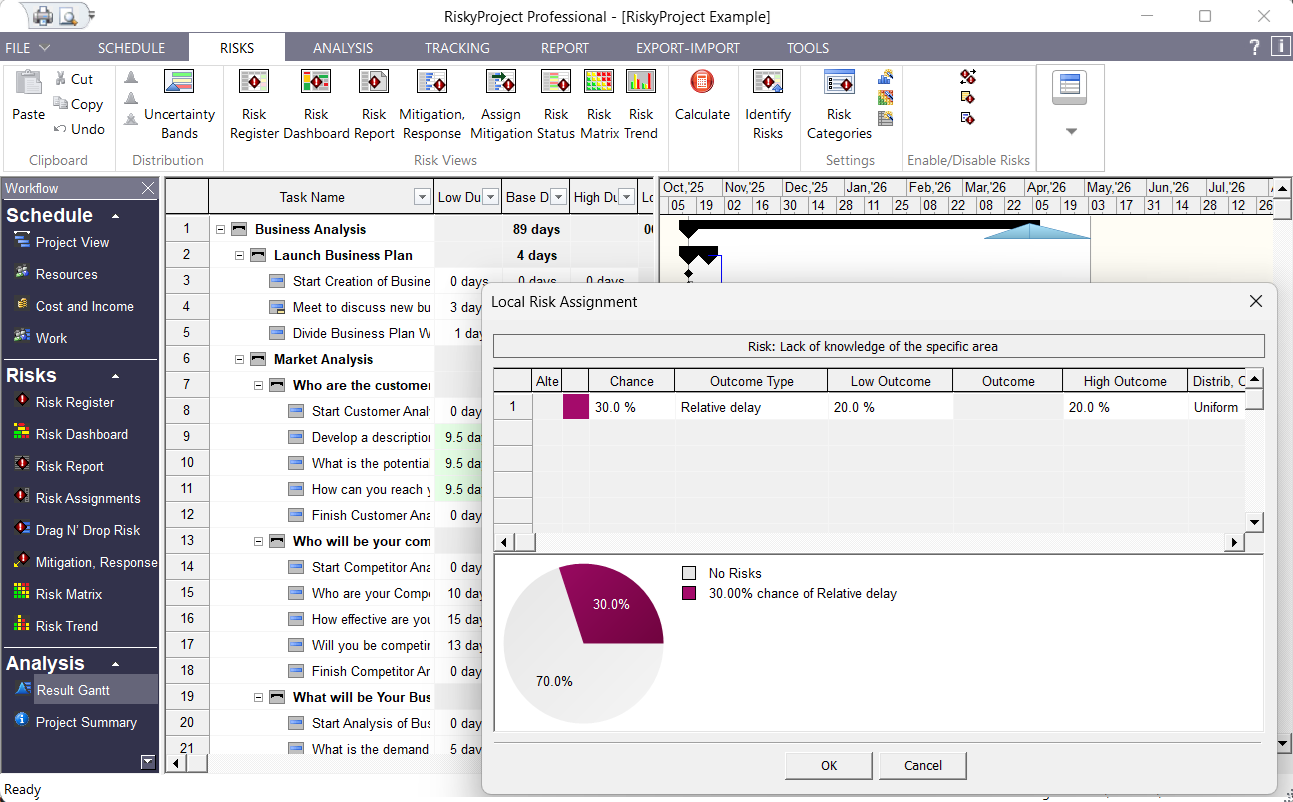
Setting up your project for risk analysis has never been easier. RiskyProject’s interface is designed to allow you to quickly add and edit your project risks. To assign risk to tasks you may use risk register, global and local risk views, assign them separately for each task or resource.
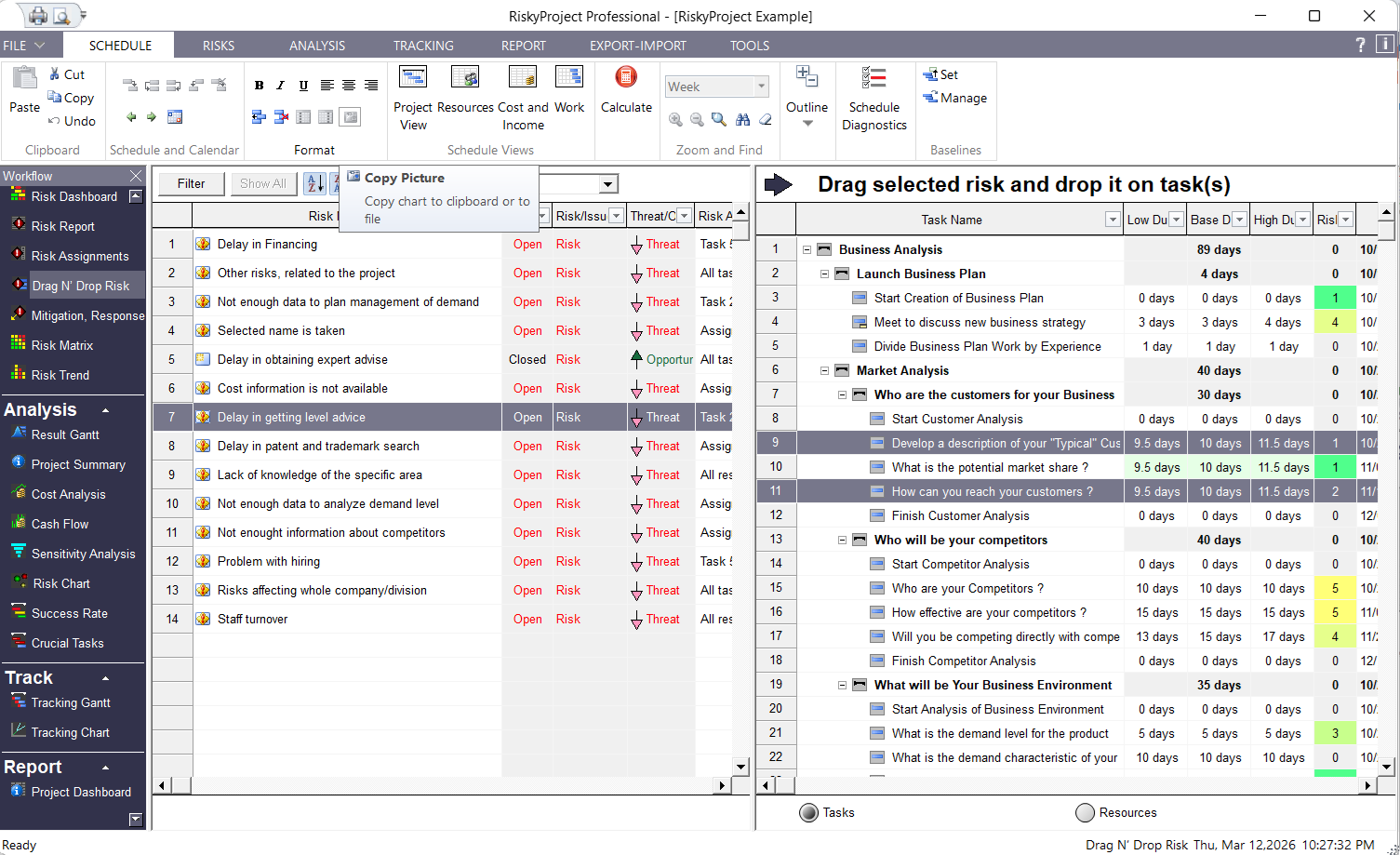
RiskyProject’s Risk Drag-n-Drop is the preferred method for assigning risks to complex projects as it allows you to quickly assign risks to multiple tasks or resources.
See Online Documentation for more information.
Result Gantt Chart – Risk Adjusted Project Schedule
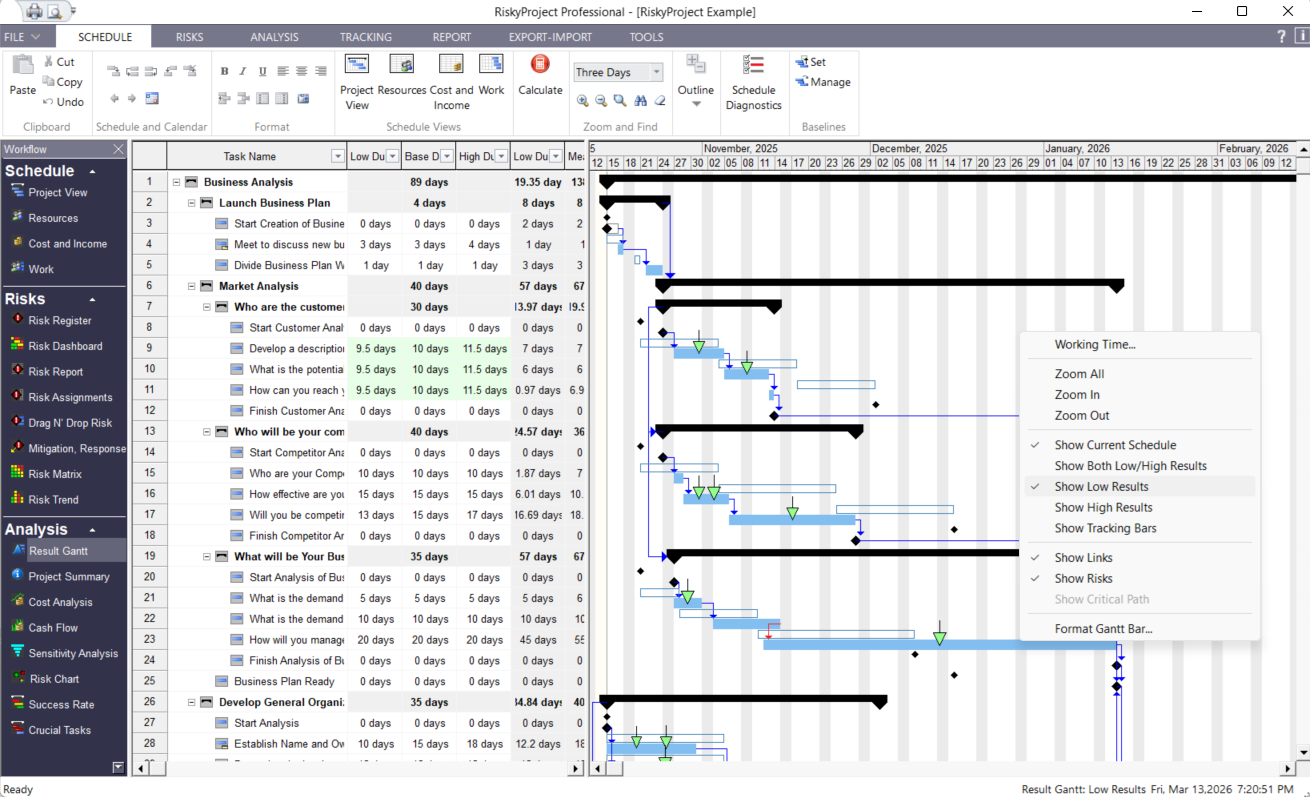
The results of your project risk analysis are shown on the Results Gantt chart. You will see the ranges for start and finish times of each task, and be able to compare them with baseline or original project schedule.
The RiskyProject scheduling engine is designed and optimized for risk analysis. Probabilistic calculations with multiple simulations are performed quickly: on small projects, the calculations are instantaneous. This is important, for as new information about the project performance becomes available, you can quickly reanalyze the project as often as required.
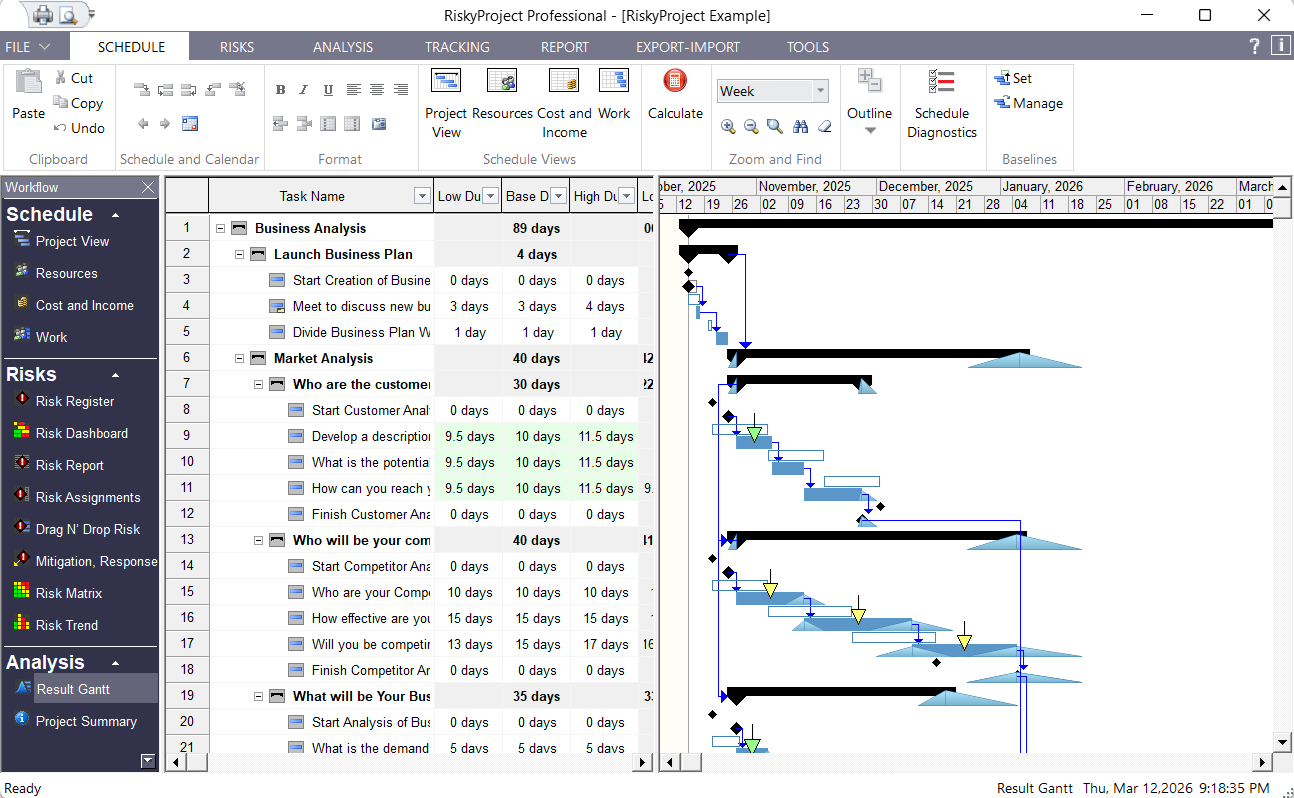
Risks and issues can be shown on the Gantt chart as arrows. The calculated impact of a risk is color-coded. For threats green = low, yellow = medium, and red = high. For opportunities, colors are opposite. The size of the arrow represents the risk probability. Click on an arrow to view information about the particular risk.
See Online Documentation for more information.
Probabilistic Cost Analysis
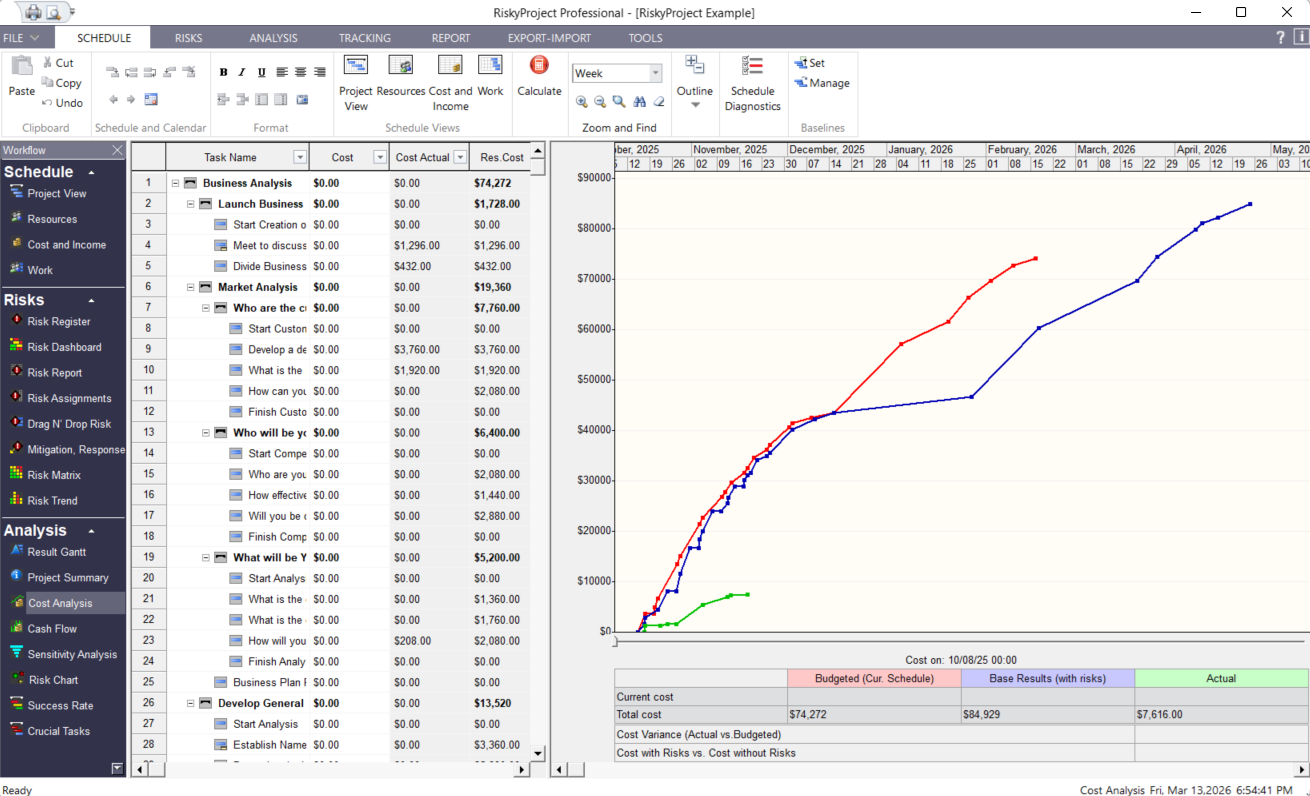
RiskyProject performs probabilistic cost analysis based on the original project schedule and the project schedule with risks and uncertainties (results of analysis). RiskyProject allows you to specify or calculate actual cost for each task. Actual, budgeted, and probabilistic (with risks and uncertainties) costs are displayed using an interactive chart. You can determine the difference between actual and budgeted costs fore each stage of the project.
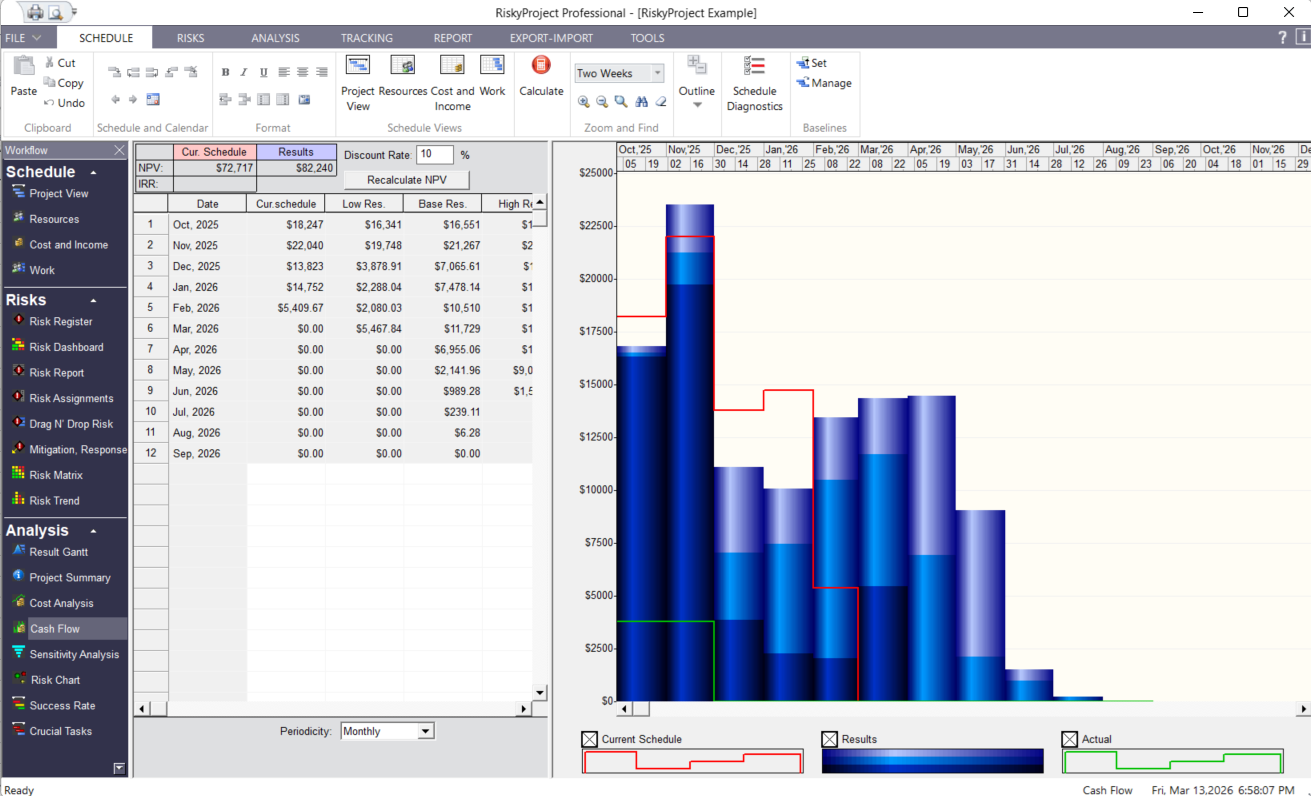
You can also view a project cash flow. The Cash flow analysis view shows monthly, bi-monthly, quarterly, and yearly cost and income allocation. You can also apply Net Present Value (NPV) discount rates and internal rate of return (IRR). The Cash flow view includes cost and income data in both table and chart format for the current schedule, results of analysis, and actuals.
See Online Documentation for more information.
Product Lifecycle Management – Probabilistic Cash Flow Analysis
In addition to cost analysis RiskyProject includes income and revenue analysis with risks and uncertainties. You may perform risk analysis related to both product development and product sales. RiskyProject has separate sets of risks related to income, such as Fixed Income Increase and Relative Income Increase.
You can also view a project cash flow. The Cash flow analysis view shows monthly, bi-monthly, quarterly, and yearly cost and income allocation. You can also apply Net Present Value (NPV) discount rates and internal rate of return (IRR). The Cash flow view includes cost and income data in both table and chart format for the current schedule, results of analysis, and actuals.
See Online Documentation for more information.
Results of Monte Carlo Simulation
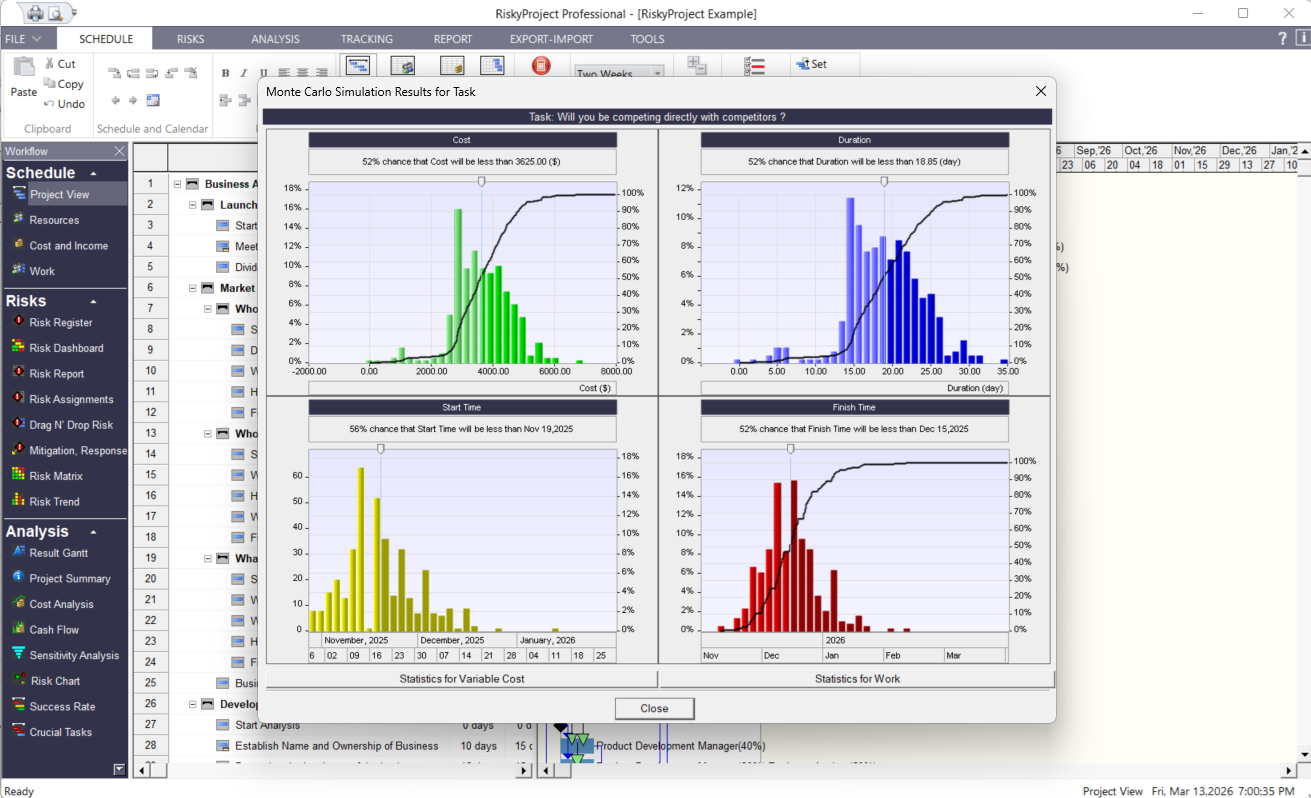
Just double-click on each bar within the Gantt chart to view histograms for duration, start and finish times, and cost, associated with the particular task. See Online Documentation for more information.
Task Deadlines
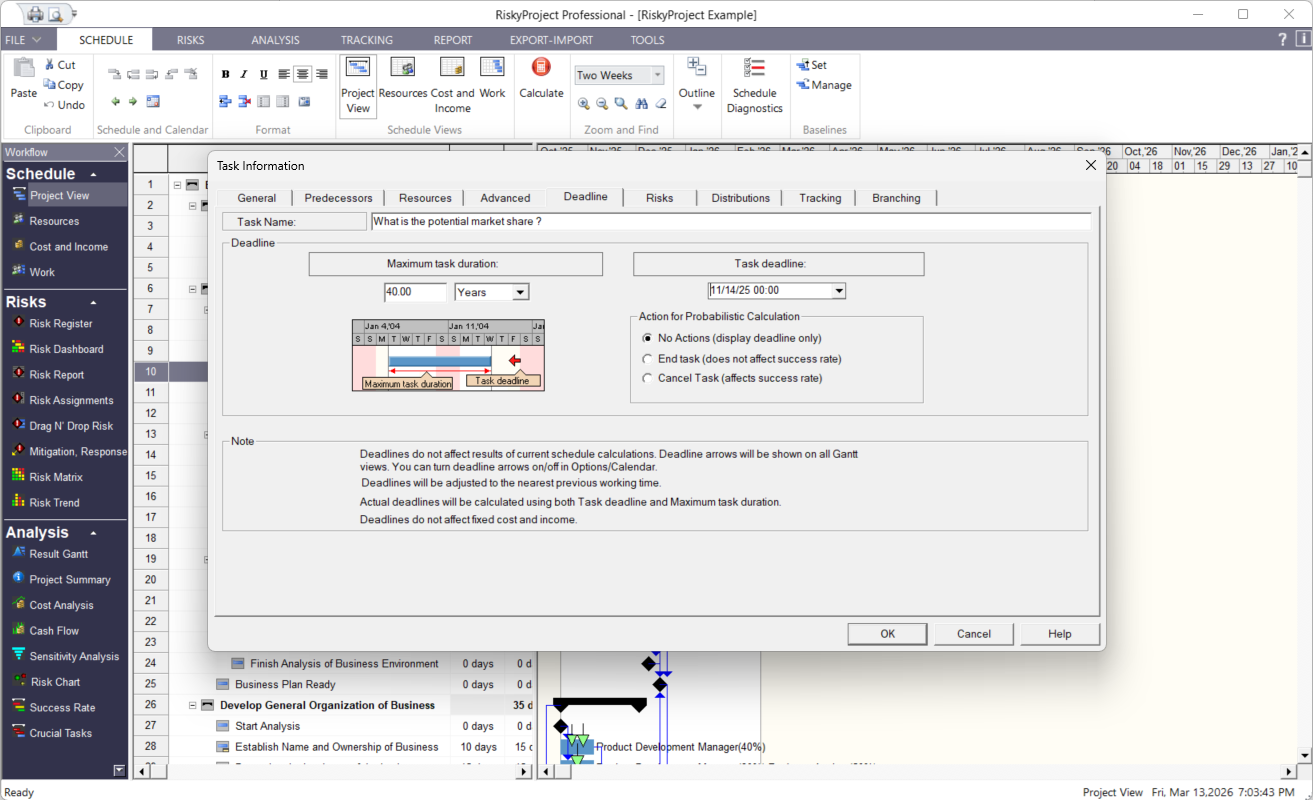
RiskyProject allows you setup project deadlines for tasks and projects and assign different actions to them. For example, tasks or projects can be canceled if the task or the project reaches the deadline. In this case, the success rate of the project or task (chance the project or task will be completed) is reduced. See Online Documentation for more information.
Probabilistic and Weather Calendars
You can now model weather and other calendar related event’s using probabilistic calendars. If your project has a 30% chance of running an inclement weather schedule, you can create this calendar with reduced hours of operation and run it 30% of the time during the project to model this calendar risk.
Weather calendar is a type of probabilistic calendar, which defines the number of non-working days per month. In each day, you can define low, base, and high estimates for non-working dates. The particular number of non-working dates is calculated for each simulation. For example, let us say you define that in March there will be between 5 to 10 non-working days. On the first iteration on Monte Carlo simulations, it will be 7 non-working days, and on the second iteration, it will be 6 non-working days, etc.
Sensitivity Analysis (Tornado Diagram)
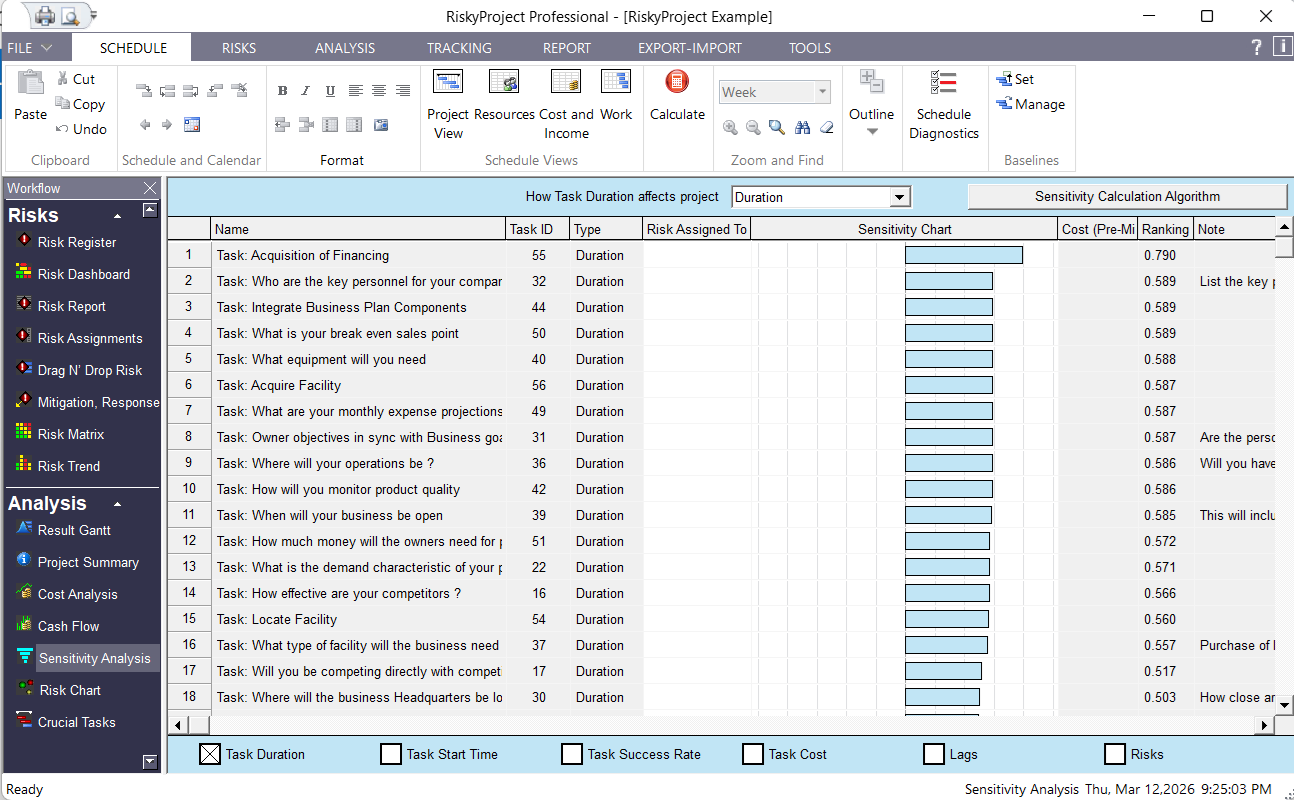
Sensitivity Analysis shows you the input parameters (task duration, start and finish time, success rate, etc.) that have the most affect on project parameters (total project cost, total duration, project finish time, and success rate). Sensitivity analysis allows you to identify critical risks, which have the potential of significantly affecting your project. These critical risks should be the key focus of your risk mitigation efforts. The results of sensitivity analysis are presented in sensitivity charts.
See Online Documentation for more information.
Crucial Tasks
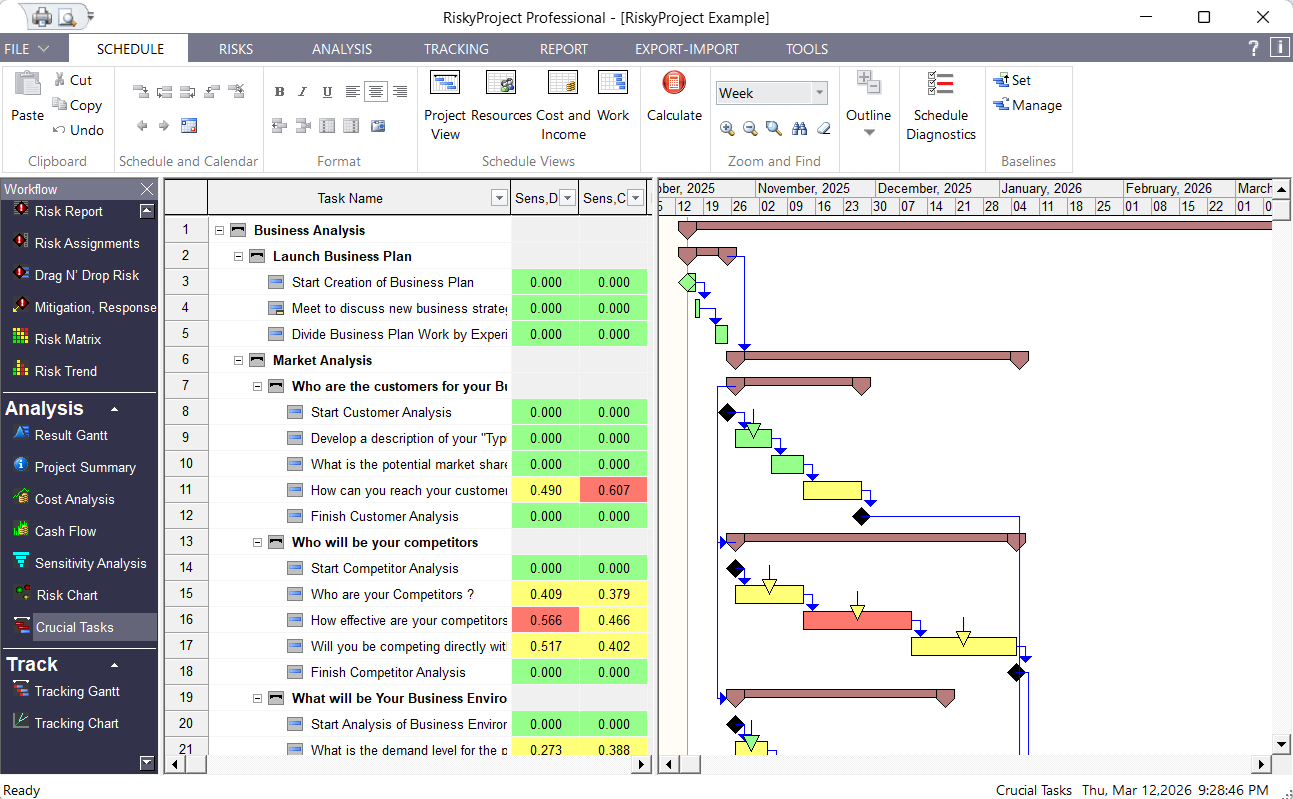
Crucial Tasks are those tasks, according to the sensitivity analysis, whose duration has the most affect on a project’s duration and finish time are crucial tasks. Uncertainties related to critical tasks should be assessed and the risks associated with these tasks should be mitigated. Crucial tasks are displayed on the Gantt chart using distinct colors.
See Online Documentation for more information.
Success Rate Gantt
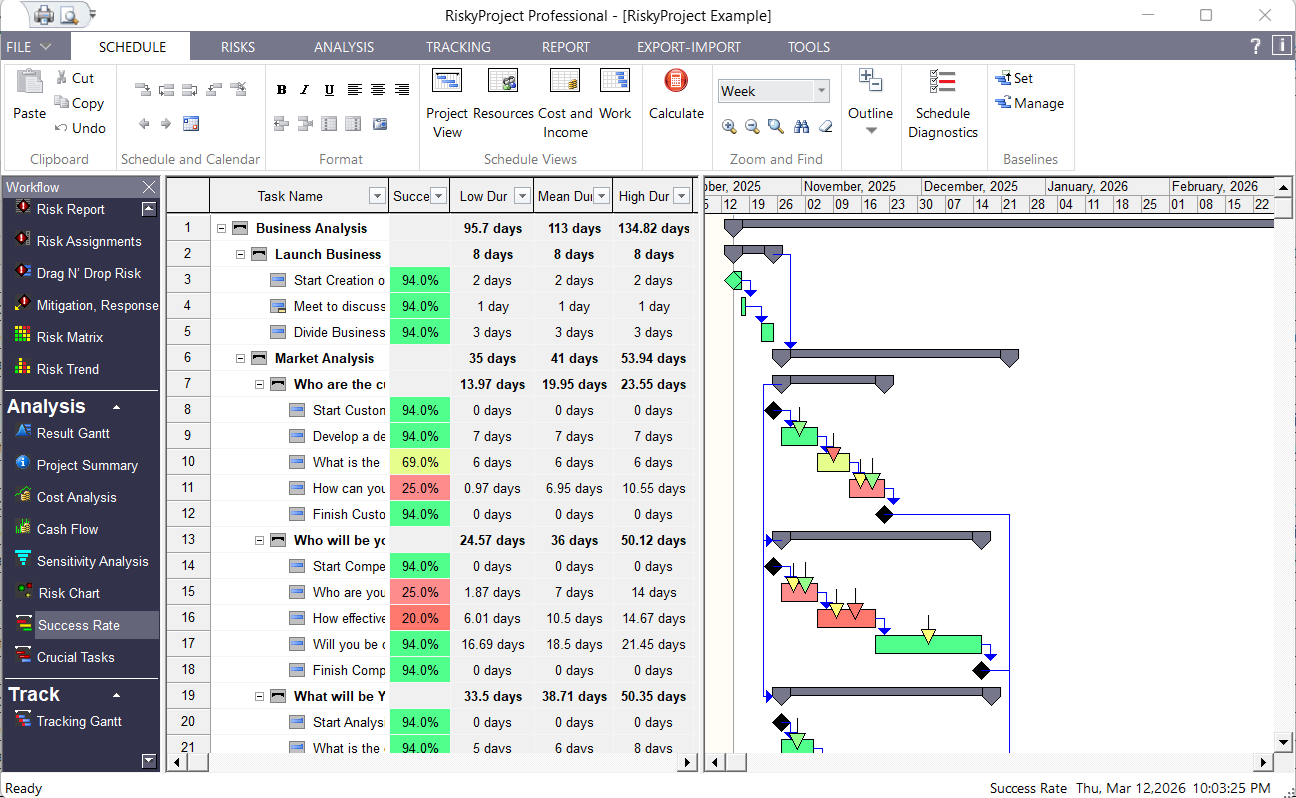
Risks and deadlines can affect task success rates. You can quickly identify tasks with that fall within specific success rates by assigning different colors to ranges of success rates. For example, those tasks whose success rate falls between 0 and 10% could be assigned the red color.
See Online Documentation for more information.
Project Summary and Project Dashboard
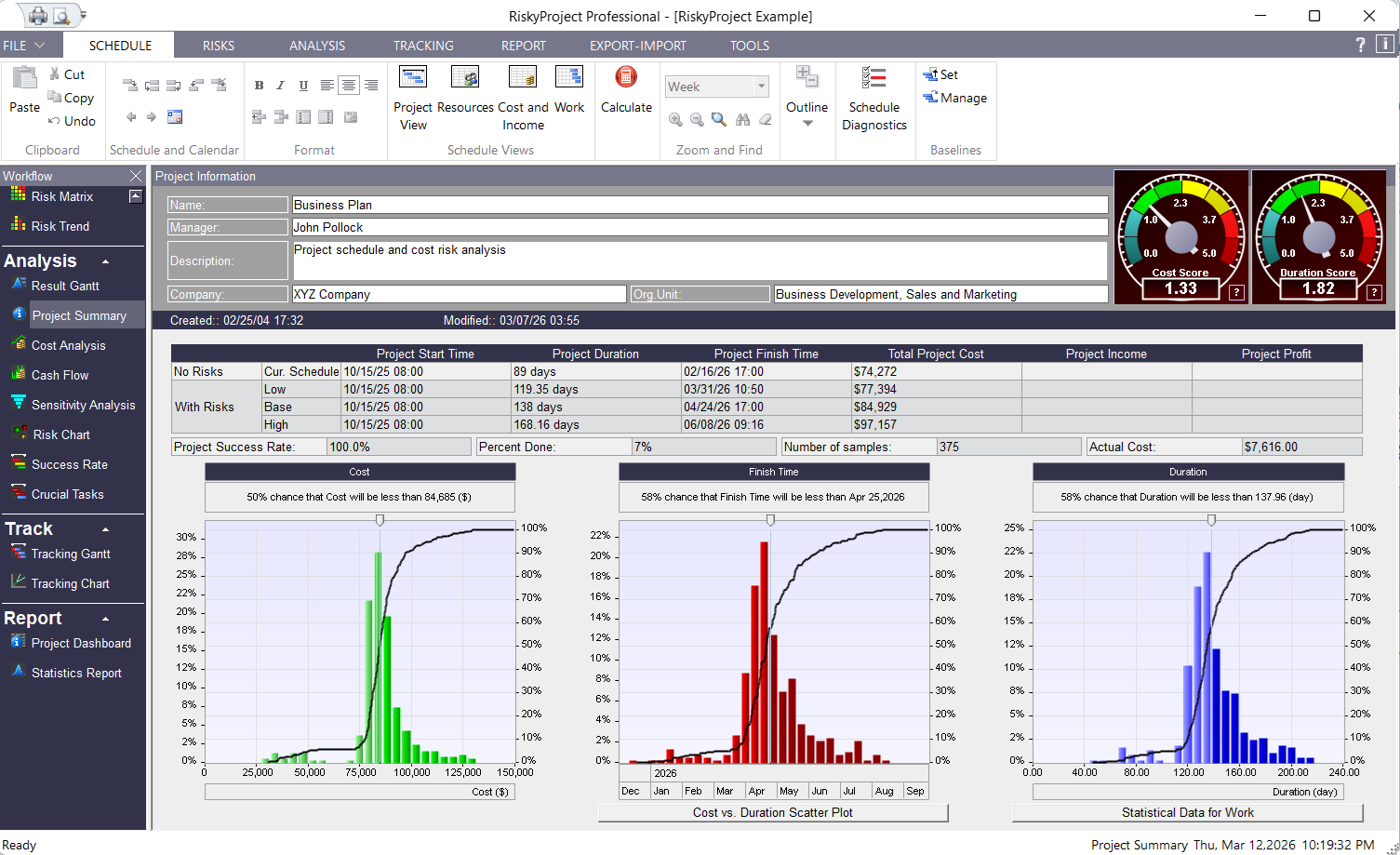
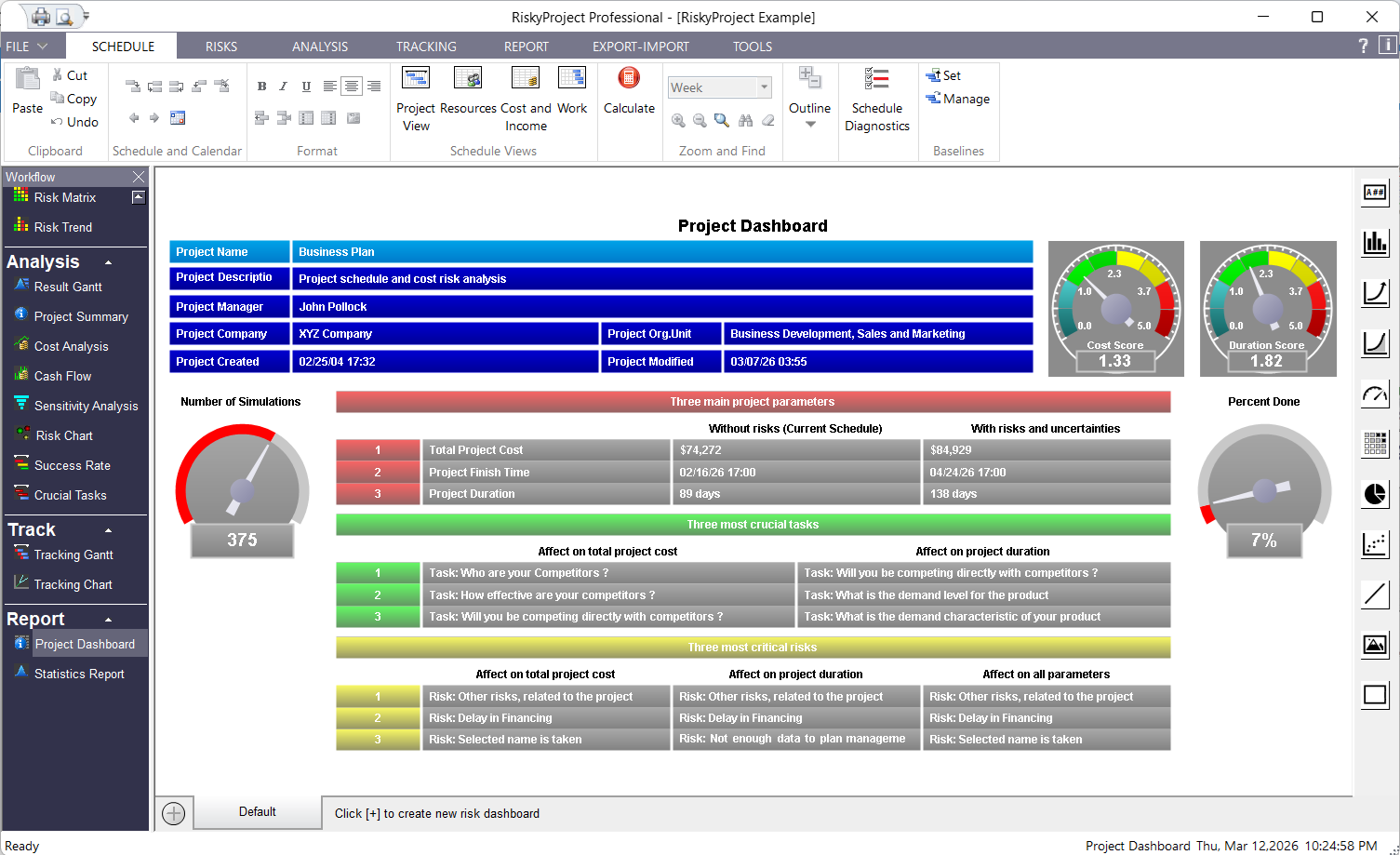
The Project Summary view shows the main information about project: total cost or revenue (if income is defined), finish time, duration, and success rate for both deterministic and probabilistic calculations. It also include frequency and cumulative probability charts for project cost, duration, finish time, as well as for income and work (if defined). The Project Summary view present project score meters for cost and duration.
Project Dashboard is an easy way to view results of analysis. It include three main project parameters (cost, duration, finish time) with and without risk; three most crucial tasks, three most critical risks, and other key performance indicators. Project Dashboard is fully customizable: to can drag and drop many charts, diagrams, KPIs.
Managing Mitigations Using Multiples Baselines
RiskyProject supports multiple baselines. You can save the current schedule or the calculated results as a baseline. A baseline is a deterministic project schedule, which you can use to:
- Track project performance against the baseline
- Analyze different project scenarios
- Perform mitigation analysis
For example, if you want to understand effect of mitigation efforts for a group of risks on project cost. To compare pre and post mitigation schedules, you perform an analysis without mitigation efforts and save the results as a baseline. Next, apply mitigation efforts, this can require additional tasks and costs and reduces the probability or impact of the risk in the current schedule. Finally, perform a cost comparison between the pre and post mitigation baselines.
See Online Documentation for more information.
Risk Chart
Risk chart shows risks associated with tasks versus task duration or task cost. The risk is expressed as task standard deviation of task duration or cost, maximum, minimum values, ranges, or different percentiles (P10, P90, etc.). In a well-balanced project schedules, different tasks usually have similar level of risks. However, if the risk associated with a task is higher than for other tasks with similar duration or cost, these risks should be carefully analyzed and possibly mitigated. Alternatively, if a task does not have significant risks and uncertainties compared with other similar tasks, it may make sense to analyze the task uncertainties to see if they have been represented properly. See Online Documentation for more information.
Probabilistic and Conditional Branching (If-Then-Else analysis)
Probabilistic branching allows the project to branch from one task to another task or group of tasks as part of the simulation process. For example, depending on results of project elaboration, there is a 40% chance that one project alternative will be selected and a 60% chance that another project alternative will be selected
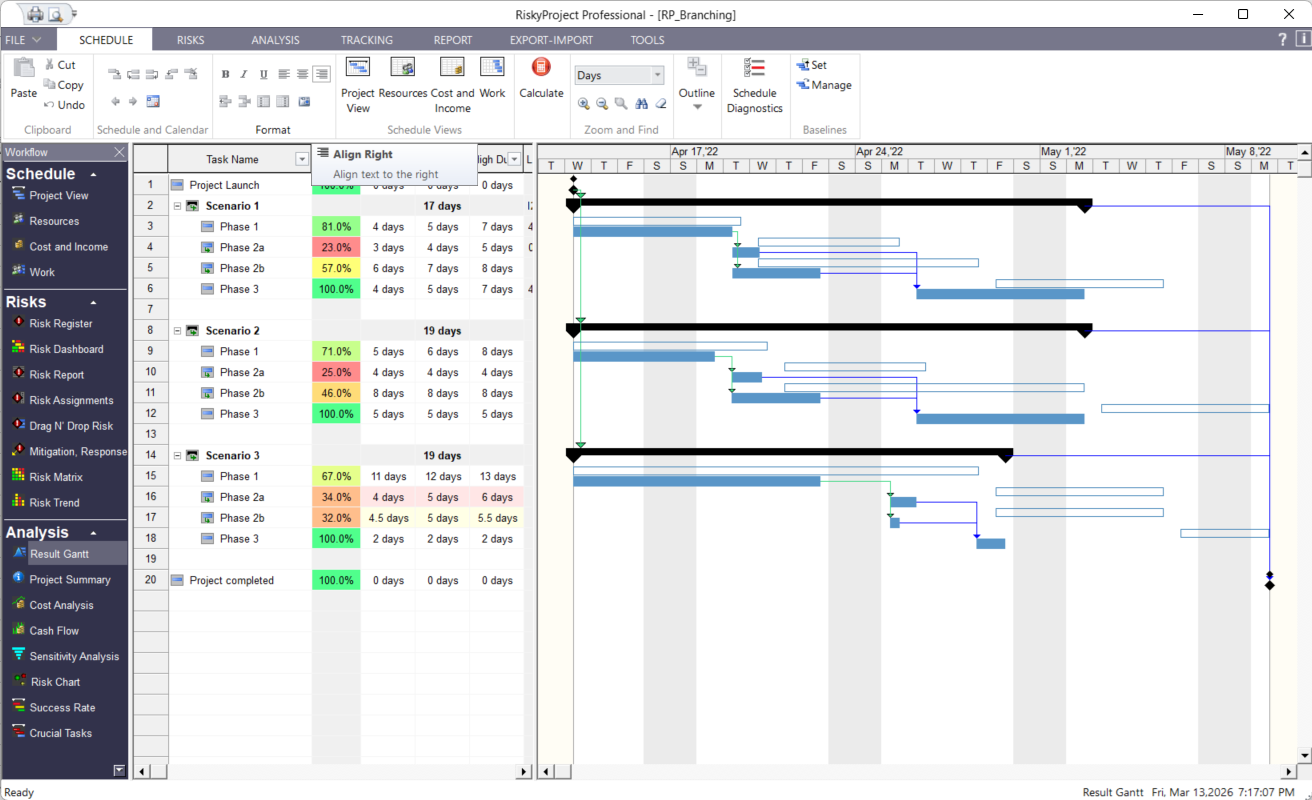
Conditional branching allows the project to branch from one task to another task based on certain conditions. For example, if a feature development task takes longer than 2 weeks, this may be require shorter development time for other features. Conditions related to task duration, finish time, and cost can be specified for each task that has successors. RiskyProject checks these if then conditions during simulations.
See Online Documentation for more information.
Correlations of risk events
Different risks can coincide with each other. For example, bad weather conditions correlates with the delayed delivery of the goods. For each risk you can specify correlated risks or risks that may occur with a specific risk. See Online Documentation for more information.
Optimistic and Pessimistic Project Schedule
Optimistic (low) and pessimistic (high) project schedule can be displayed separately on Result Gantt chart. It gives you an opportunity to analyze different project scenarios.
Multiple Statistical Distributions
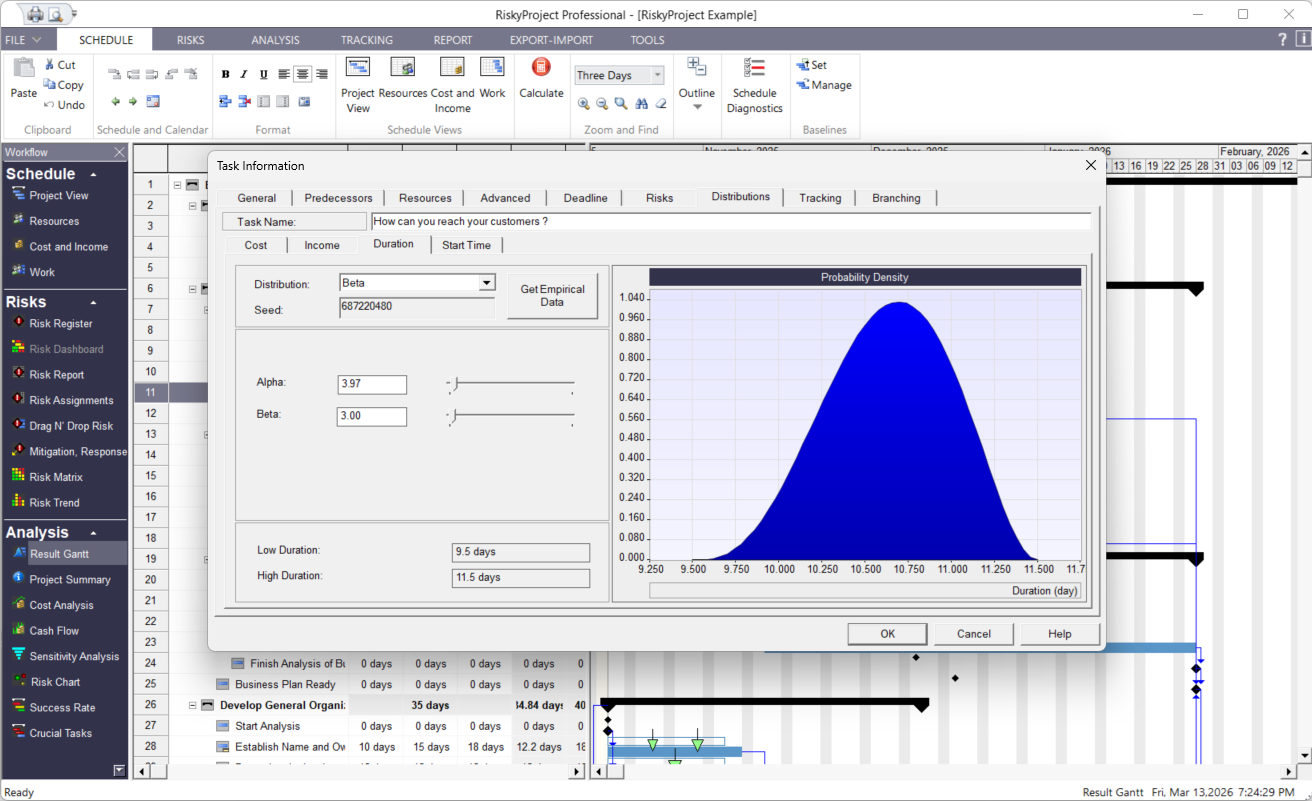
In addition to the Risk Register uncertainties in the RiskyProject can be represented using statistical distributions. Using RiskyProject’s intuitive interface, you can define ranges for the following task parameters: duration, start time, cost, and lag between task successor and predecessor.
RiskyProject supports the following distributions for task duration, start time, and cost:
BetaPert
Cauchy
Custom
Gamma
Gumbel
Exponential
Discrete
Lognormal
Normal
Laplace
Rayleigh
Triangular
Uniform
Project Control with Risks and Uncertainties
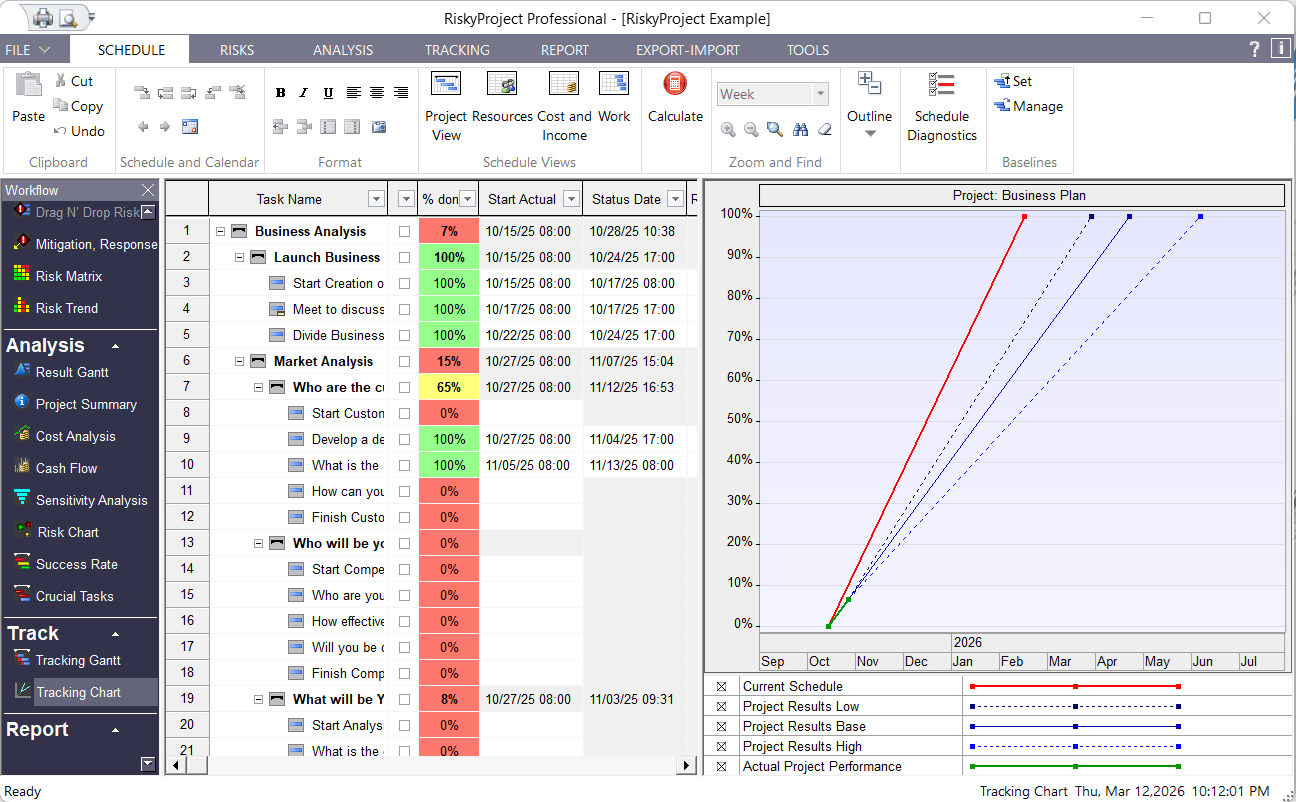
Because real-life data is sometimes the only way to assess your uncertainties correctly, tracking is one of the most important components of RiskyProject. To track a task, you enter the percentage of the task done on the particular date. RiskyProject then calculates the projected task duration and updates the risk profile of the task. The project schedule is recalculated to give you a more accurate estimate of total cost, project finish time, and duration. These new results are then presented in the Tracking Gantt Chart.
See Online Documentation for more information.
Reporting Results of Qualitative and Quantitative Risk Analysis
RiskyProject comes with powerful reporting tools. You can output the project schedule from each step of the workflow. RiskyProject’s customizable Task Sheet and Result Task Sheet allow you to see task information in table format. The results can be printed, exported to the clipboard in graphic and text format, or exported to as a JPEG file. This is particularly useful if you want to publish results of your analysis to the web.
Risk Dashboard
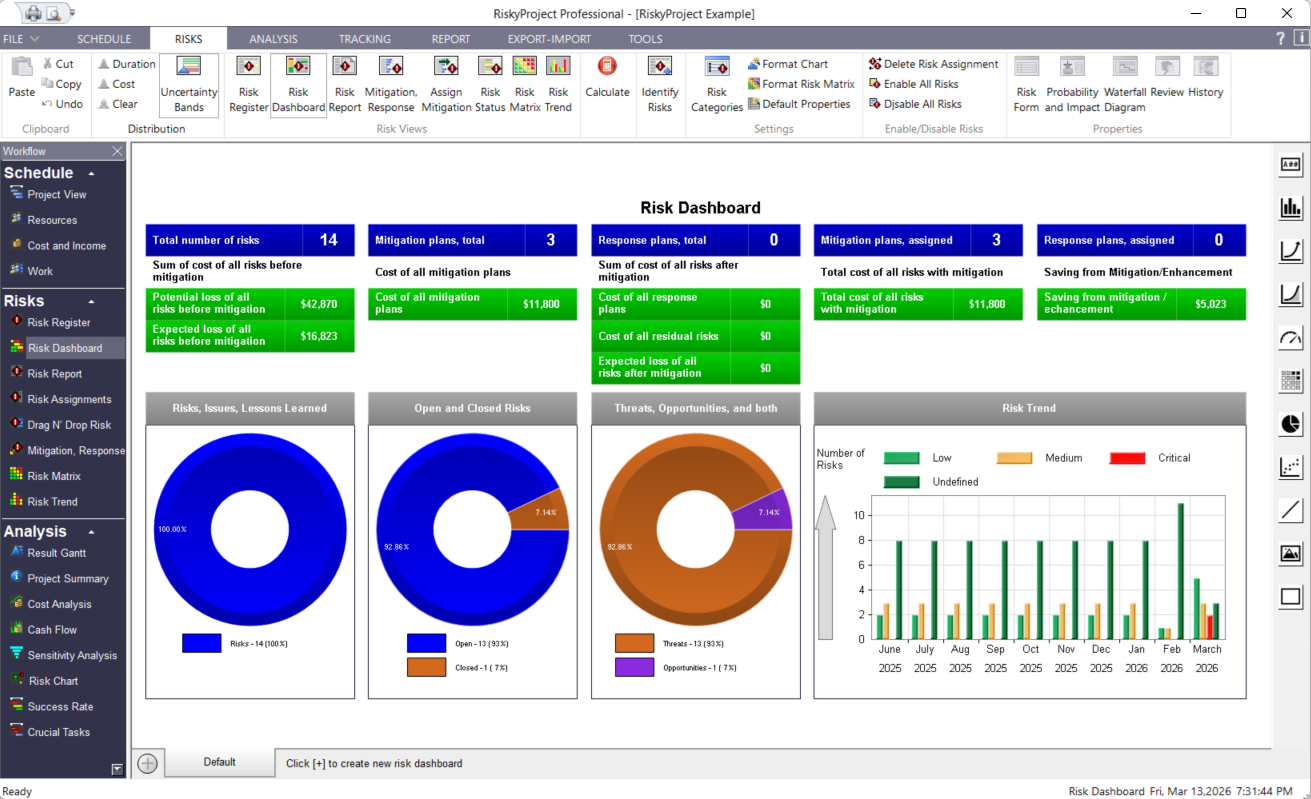
Risk Dashboard presents hundreds of different key performance indicators (KPIs) and charts related to your risks with a fully customizable Risk Dashboard. Dashboards can present data in a variety of ways including charts – line, area, pie, scatter, bar (including frequency histogram), meters, and risk matrixes. You can place them in different areas on the dashboard, and adjust their size, colors, and other properties. Dashboards can be annotated using text, lines, and images. Dashboards can be printed or exported.
Statistics Report
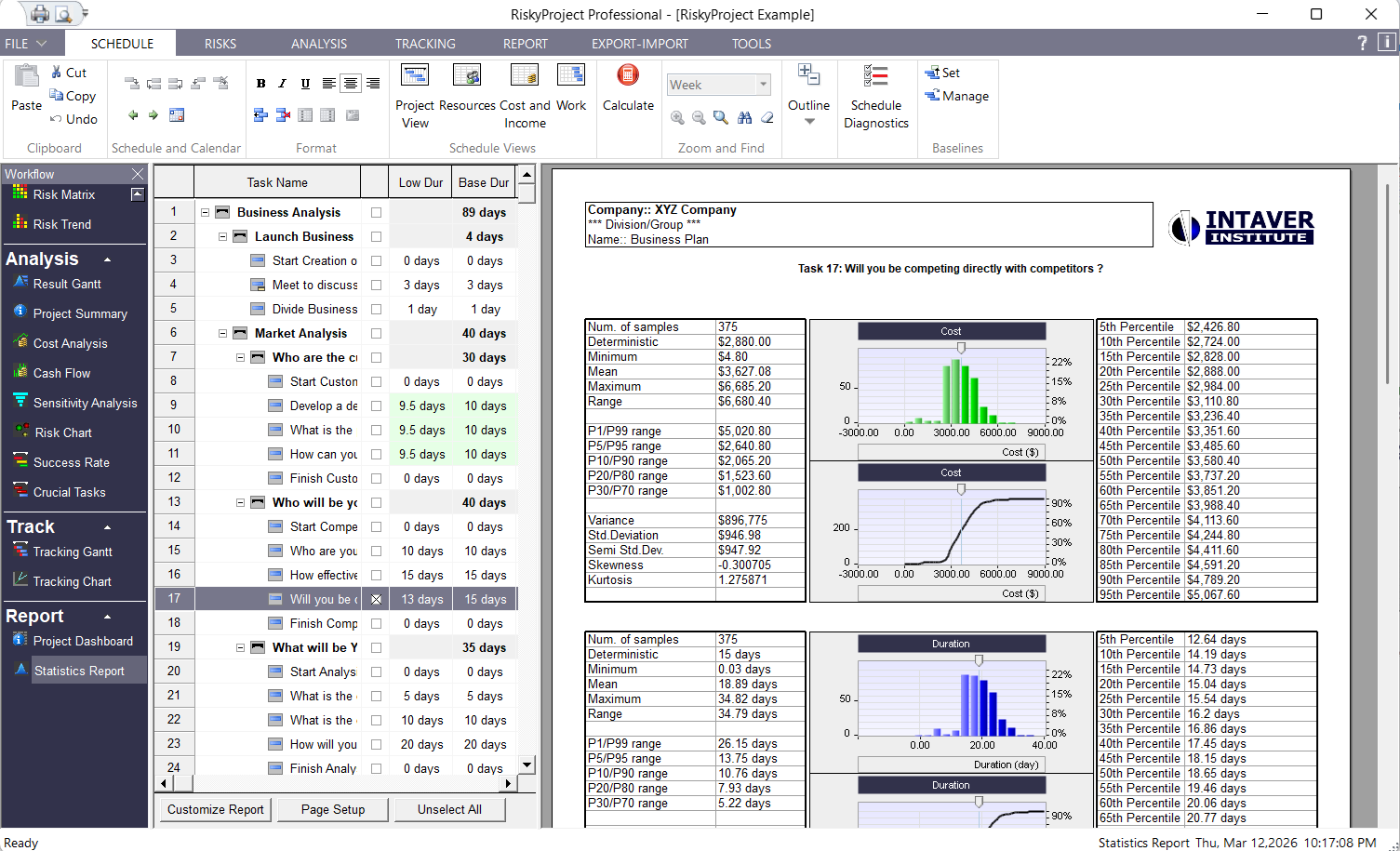
Once you have completed the Monte Carlo simulation, you can quickly generate a statistics report for selected tasks in your project schedule. The statistics report can include histograms for Start Time, Finish Time, Duration, and Cost as well as a Sensitivity to Finish Timetable with a Tornado chart. Statistics reports can be exported to PowerPoint.
RiskyProject Lite, Professional, and Enterprise
RiskyProject Enterprise is a portfolio risk management software. RiskyProject Professional features advanced risk analysis functionalities: project planning, scheduling, quantitative risk analysis, and project performance measurement. RiskyProject Lite has the same project scheduling and performance measurement functionalities, but it includes only basic quantitative risk analysis functionalities.
| Features | Lite | Professional | Enterprise |
|---|---|---|---|
| Project and Portfolio Planning and Scheduling | |||
| Portfolio time, cost, and risk management | x | ||
| Portfolio hierarchy and portfolio Gantt Chart | x | ||
| Work breakdown structure for individual projects | x | x | x |
| Gantt Chart for individual projects | x | x | x |
| Resource and work management | x | x | x |
| Project cost management | x | x | x |
| Constraints and deadlines | x | x | x |
| Multiple baselines | x | x | |
| Multiple project, task, and resource calendars | x | x | x |
| Risk Management | |||
| Risk Register (risks and issues, threats and opportunities, open and close risks, risk properties, risk probabilities, impacts, and scores, search and filter risks based risk properties) | x | x | x |
| Schedule and non-schedule risks (schedule, cost, safety, quality, environment, technology, legal, etc.) | x | x | x |
| Risk Matrix and Risk Trend charts | x | x | x |
| Risk reviews and risk history | x | x | x |
| Documents associted with Risks | x | x | x |
| Mitigation and Response Plan Registry, Risk mitigation (“waterfall”) diagrams | x | x | x |
| Customizable Risk Dashboard | x | x | x |
| Share Risk Register among different projects | x | ||
| Common risk register accessible by different users with an organization | x | ||
| Rank projects within a portfolio based on risks, portfolio and project risk profiles | x | ||
| Customizable risk categories and outcomes | x | x | x |
| Easily assign risks to tasks or resources | x | x | x |
| Risk correlations | x | x | x |
| Risk templates (standard risk templates are included) | x | ||
| Types of Uncertainty | |||
| Risk events for tasks and resources (fixed or relative delay, fixed of relative cost increase, Task restart, End task, Cancel task, etc.) | x | x | x |
| Multiple statistical distributions for task duration, cost, income start time, and lags (Uniform, Triangular, Normal, Lognormal, Exponential, Rayleigh, Gumbel, Beta, BetaPert, Discrete, Custom, and others) | In MS Project Add-in | x | x |
| Conditional branching (If-Then-Else analysis) | x | x | |
| Probabilistic branching | x | x | |
| Probabilistic and weather calendars | x | x | |
| Quantitative Risk Analysis | |||
| Monte Carlo Simulations | x | x | x |
| Global risks (for all tasks or resources) | x | x | x |
| Local risks (for selected task or resource) | x | x | x |
| Cost analysis with risks and uncertainties | x | x | |
| Analysis of success rate using project and task deadlines | x | x | x |
| Risk analysis for product lifecycle management | x | x | |
| Sensitivity analysis (analysis how uncertainties affect project duration, cost, finish time, and success rate) | In MS Project Add-in | x | x |
| Analysis of risk mitigation using multiple baselines | x | x | |
| Reporting Tools | |||
| Customizable histograms and cumulative probability plots for task or project duration, start and finish times, cost, work, resource allocation, income and revenue | In MS Project Add-in | x | x |
| Project information views (view original project parameters and results of simulation) | x | x | x |
| Custimizable Project Dashboard | x | x | |
| Result Gantt view (compare original project schedule with results of analysis) | x | x | x |
| Optimistic and pessimistic project portfolio view | x | ||
| Customizable risk report | x | x | x |
| Report Views: Cash flow, Critical risks, Crucial task, success rate, and others | x | x | |
| Integration with other project management tools | |||
| RiskyProject Add-in for Microsoft Project | x | x | x |
| Integration with Oracle Primavera | x | x | x |
| Other Project Management Software*. | x | x | x |
| Project Control with Risks and Uncertainties | |||
| Forecasting of duration of incomplete tasks with risks and uncertainties | x | x | x |
| Project tracking views | x | x | |
| Other features | |||
| Secure access to the corporate database | x | ||
| Email notification about changing of risk status | x | ||
| User management: multiples users with different roles and permissions | x | ||
| Free unlimited customer support via email | x | x | x |
| Online help and tutorial | x | x | x |
| * third-party software should be purchased separately | |||