
Purchasing RiskyProject: How To Validate Your License
If you already have the RiskyProject Trial version (e.g. 30 day trial version) installed on your computer go to:
HELP -> About RiskyProject -> Update License
The License Dialog comes up. If you are setting up RiskyProject for the first time select "regular license" in the first dialog of License Wizard. The next page in the License Wizard opens.
If you don't have RiskyProject installed on your computer, click here to download it.
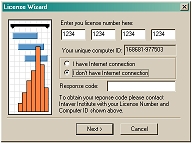
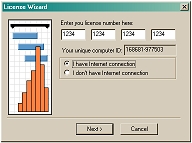
A. If you have an Internet connection when you validate the license, enter your license number (e.g. 1234-1234-1234-1234) and select "I have Internet connection" and click NEXT >.
B. If you do not have Internet connection when you validate your license, do the following:
- Record the unique computer ID from the License Dialog, as you will need it for the next steps
- Click here to open our Response Code Generator in a new browser window
- Use the Response Code Generator along with your license and unique computer ID to generate a response code
- Go back to License Dialog, select "I do not have Internet connection", enter your response code, and click NEXT >.